Plan maintenance
Afterwards up4 stays quiet while you do planned work, and your status page can tell visitors about it in advance.
- Who: Any role except Viewer
- Time: About ten minutes
- What you need: A monitor for the weekly window
To announce the work you also need a status page.
Choose how to plan it
| Your situation | Use |
|---|---|
| The same quiet time every week, such as a nightly backup | A weekly window on the monitor, described first. |
| One piece of work on one monitor, with no announcement | Open the monitor's Actions menu, choose Pause, then Until…. Checks stop now and resume by themselves at the time you pick, up to 90 days ahead. A paused monitor runs no checks. |
| Work you want to announce, once or repeating, for several components | Maintenance on a status page, described second. It can pause the affected monitors for you. |
Mute alerts on a weekly schedule
-
Open the monitor and select Edit
Open the monitor from Monitoring and select Edit.
-
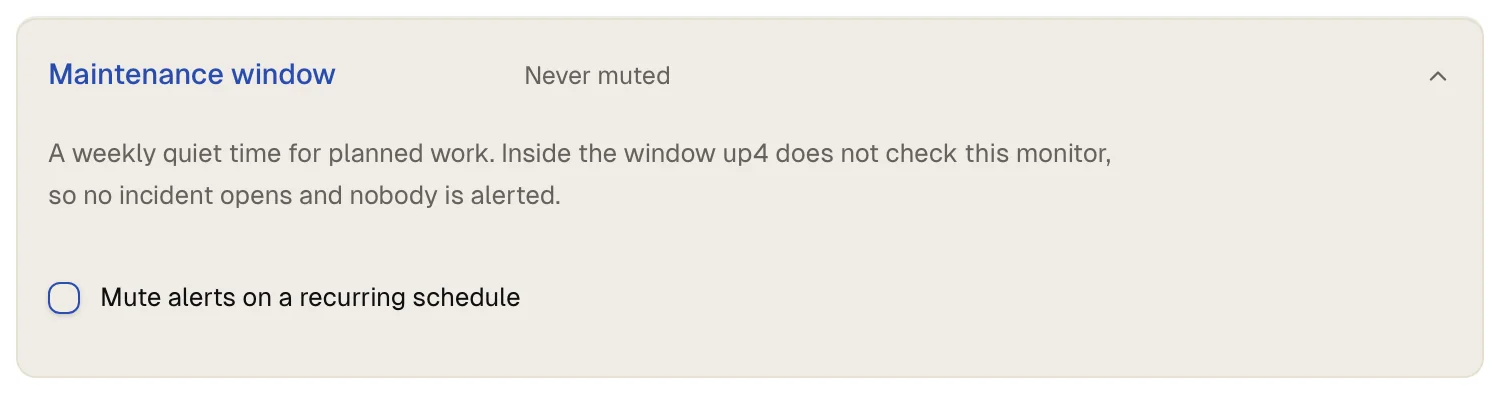
Open the maintenance row
Under Everything else, open the row Maintenance window.
-
Switch the window on
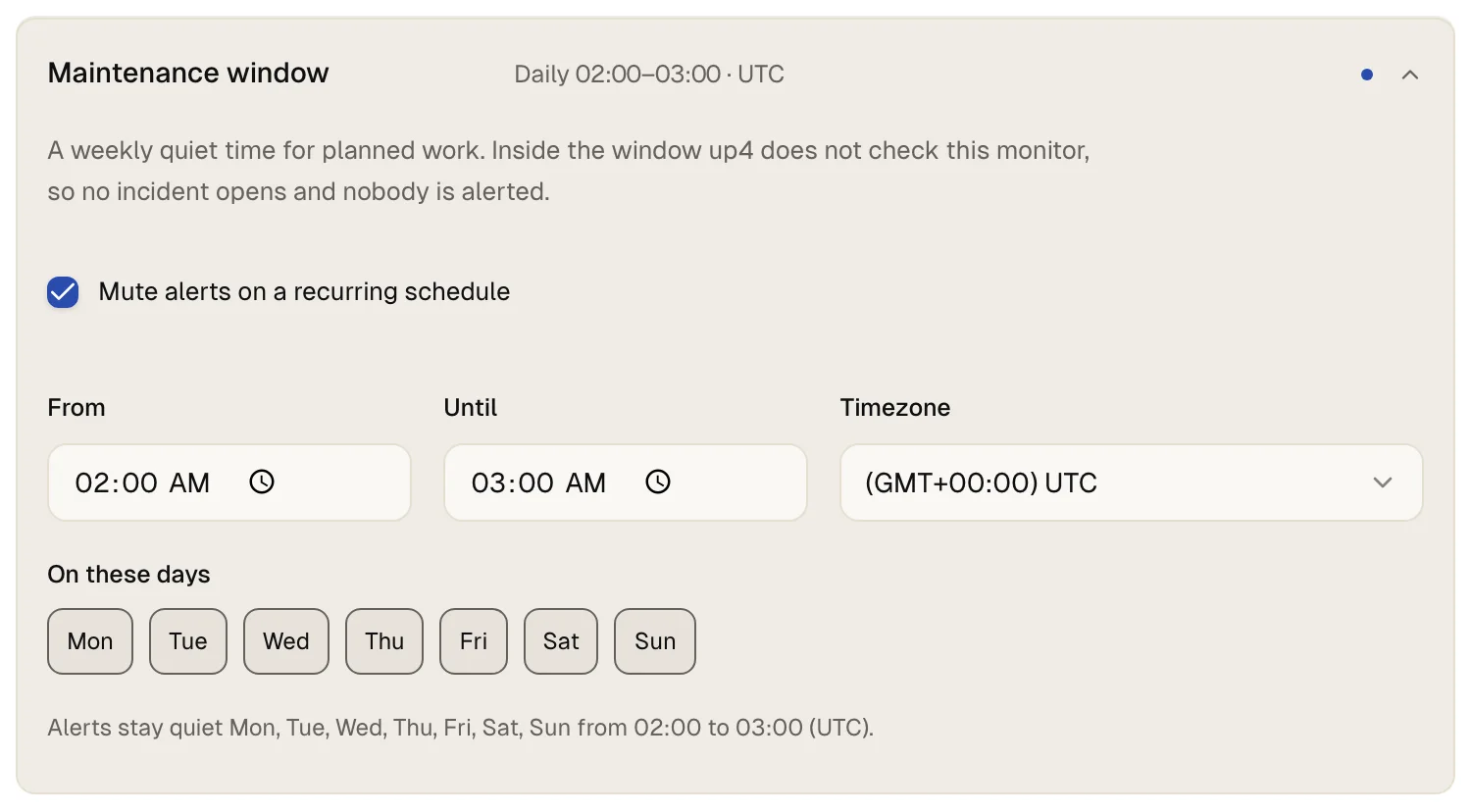
Tick Mute alerts on a recurring schedule. up4 fills in 02:00 to 03:00 on all seven days.
-
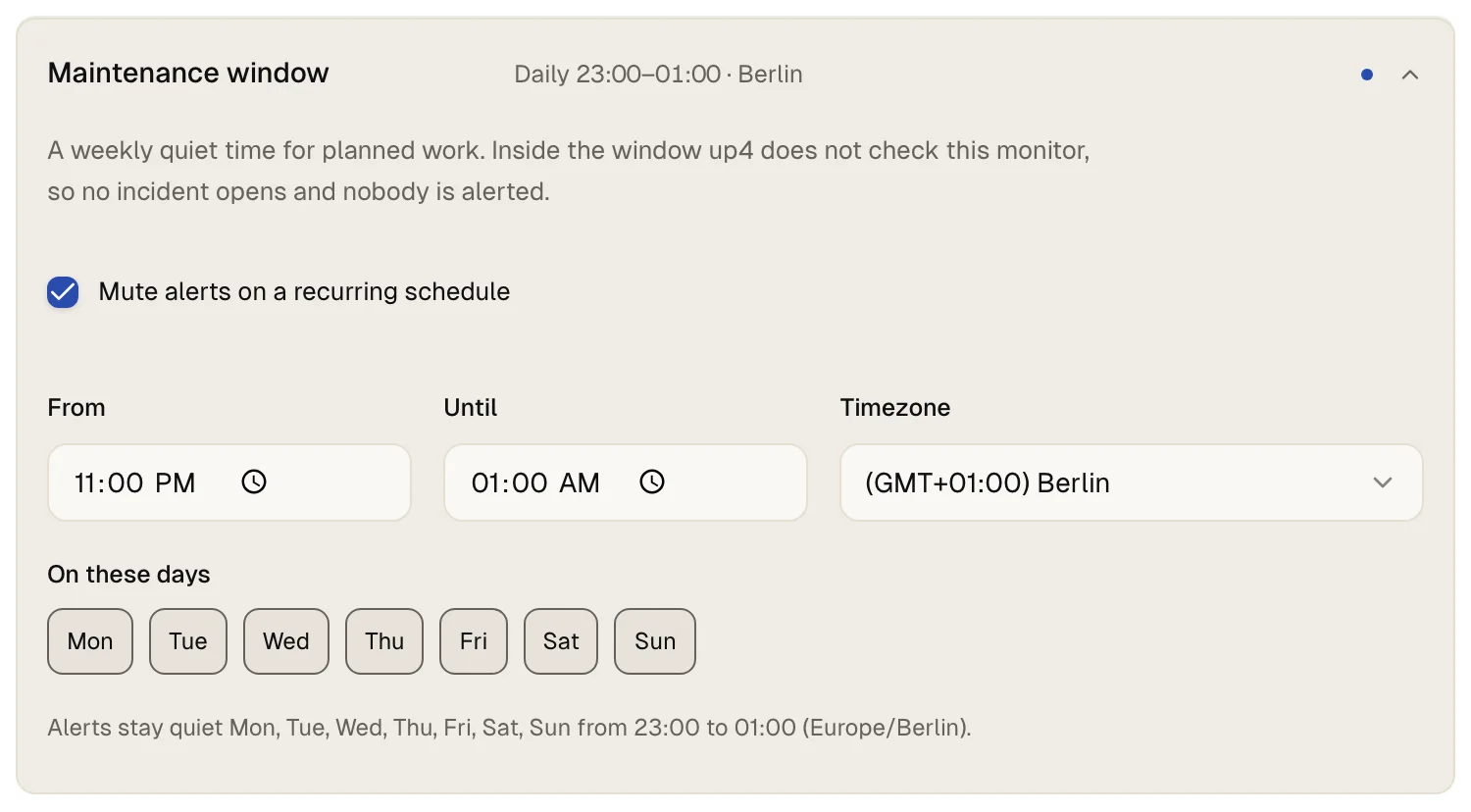
Set the times and the time zone
Enter the start under From and the end under Until, then pick the Timezone the times are meant in. A window can run past midnight, for example from 23:00 to 01:00.
-
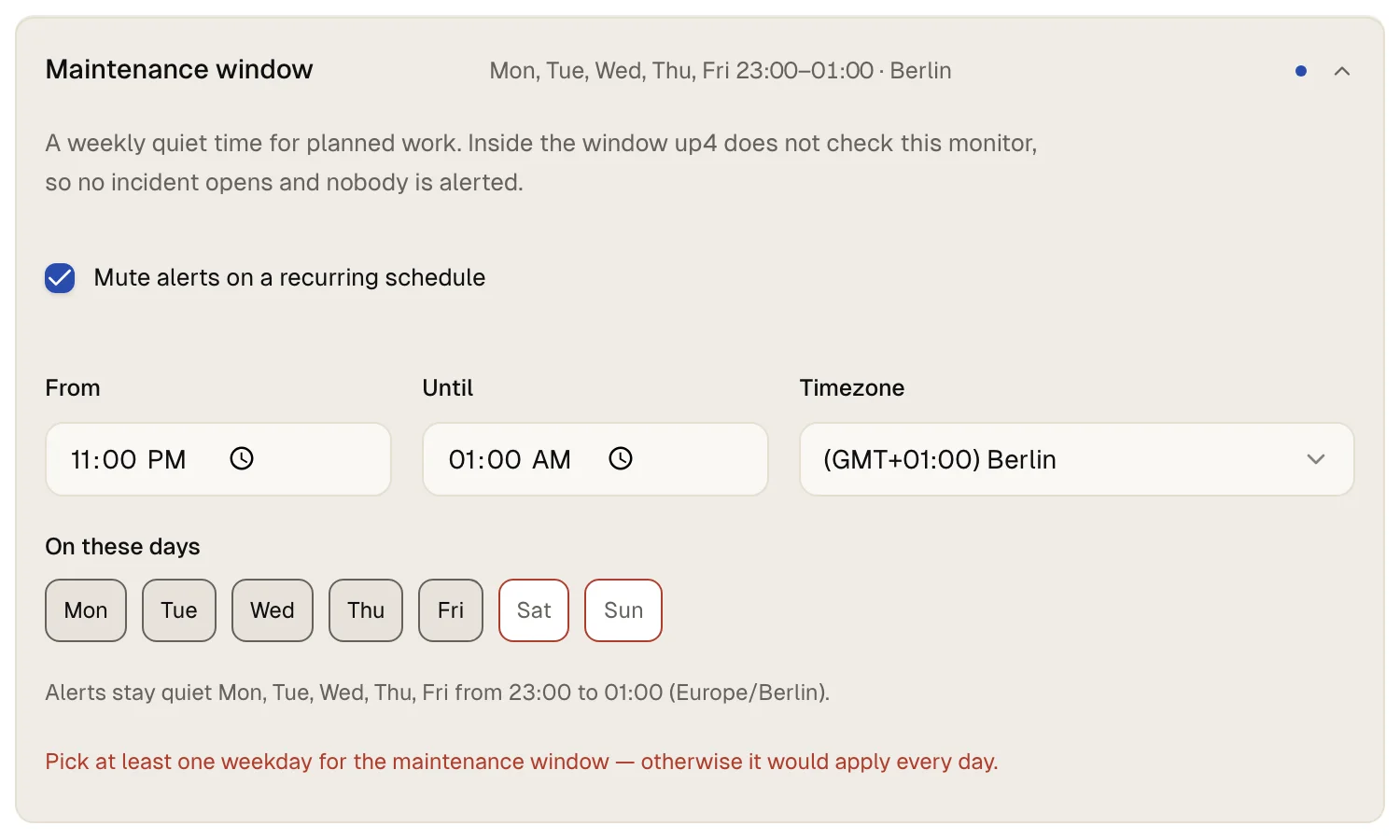
Pick the days
Under On these days, tick every weekday on which the window starts. You need at least one day: with none ticked, the form does not save and asks you to pick one. The sentence below the days repeats what you set.
-
Save
Select Save changes.
Open the monitor's page. Under Check & settings, open Check. There is a row Maintenance with your window in one sentence: the days, the times and the time zone.
Inside the window up4 does not run this monitor's checks. No result is stored, nobody is alerted and no incident opens. Outside the window the monitor behaves as before.
Announce maintenance on a status page
-
Open the maintenance tab
Open your status page from Status pages, go to the tab Maintenance and select Schedule maintenance.
-
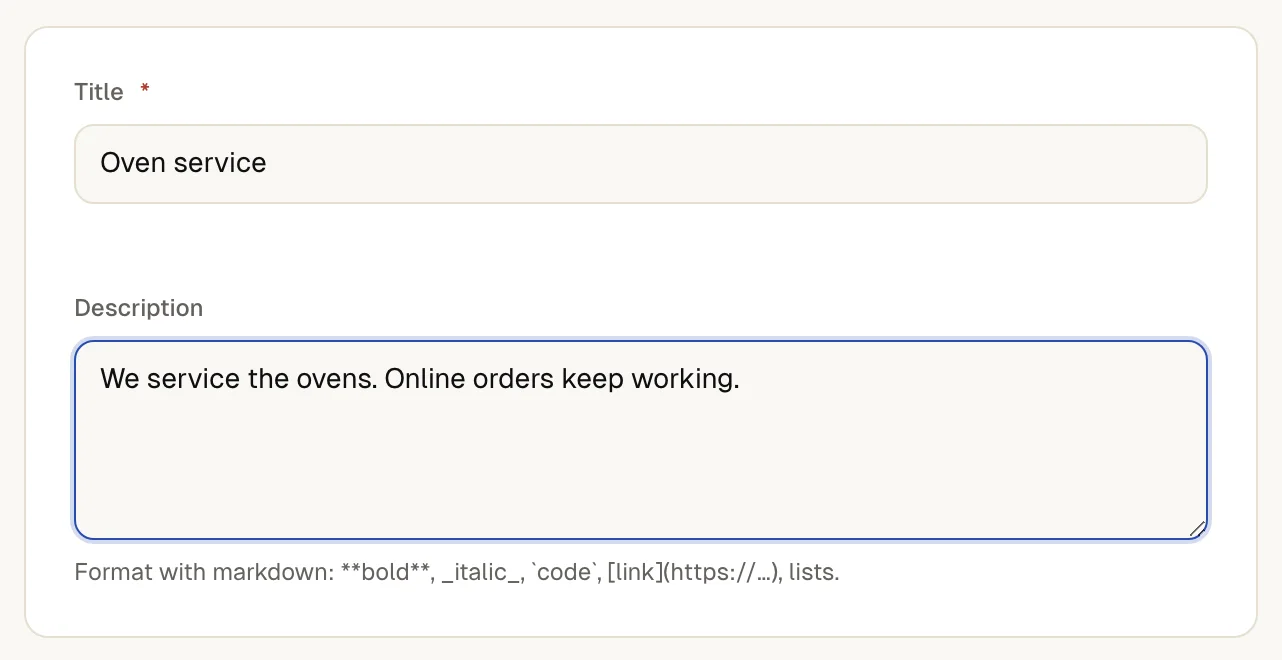
Describe the work
Enter a Title and a Description. The description accepts markdown.
-
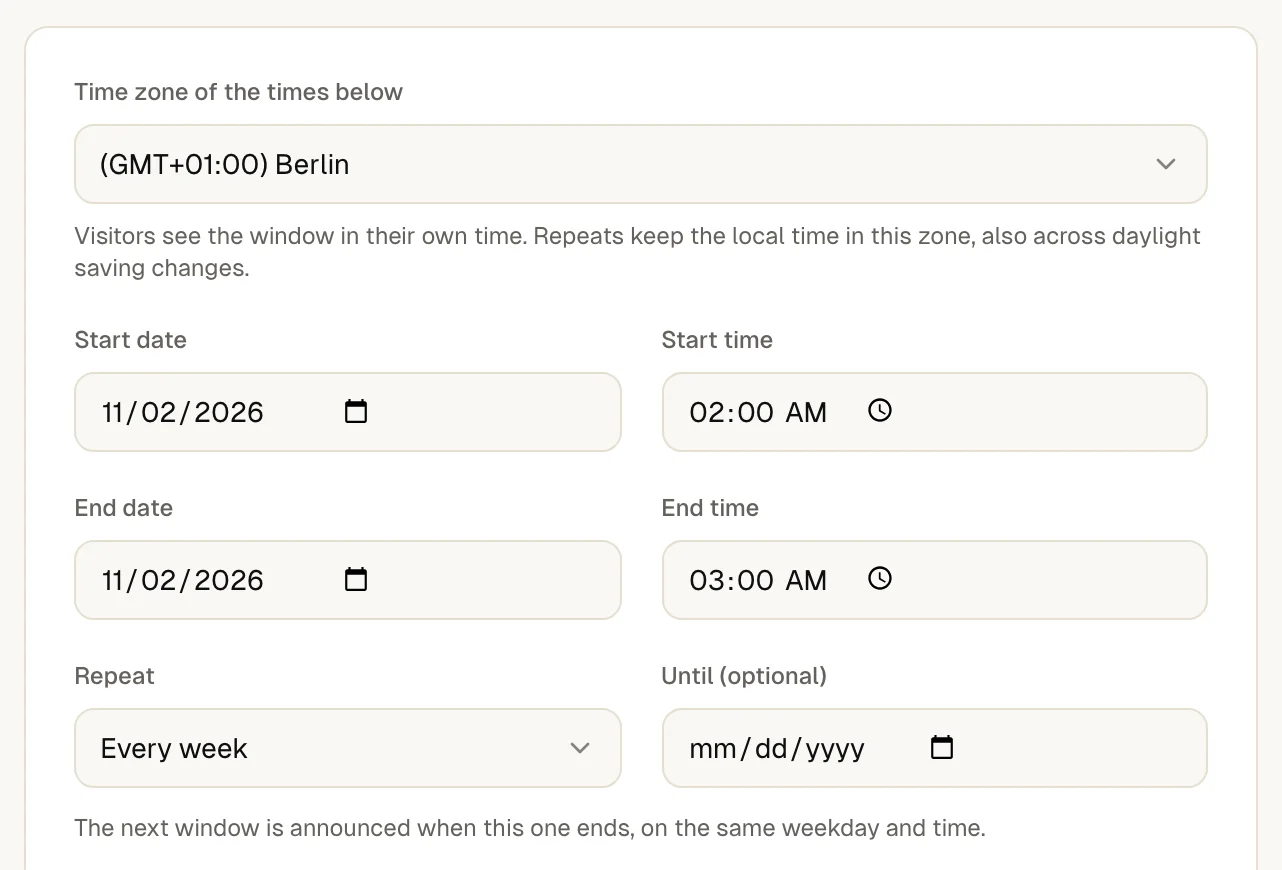
Set the window
Enter Start date, Start time, End date and End time. The page's time zone is preselected. Visitors see the window in their own time.
To repeat the window, set Repeat to Every week or Every month, and optionally an end date under Until (optional). Repeats keep the local time, also across daylight saving changes.
-
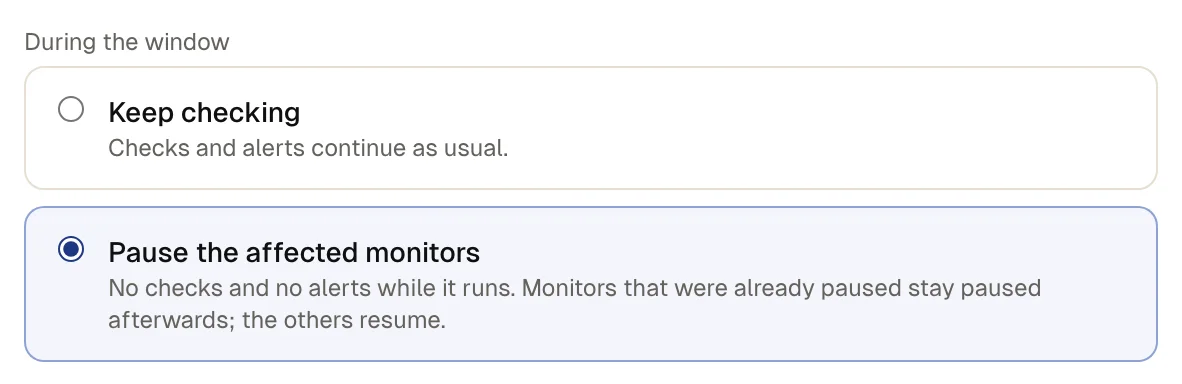
Choose what happens to checks
Under During the window, pick Keep checking or Pause the affected monitors. Keep checking leaves checks and alerts as they are. Pause the affected monitors pauses the monitors behind the components you pick next when the window starts and resumes them when it ends. Monitors you had paused yourself stay paused.
-
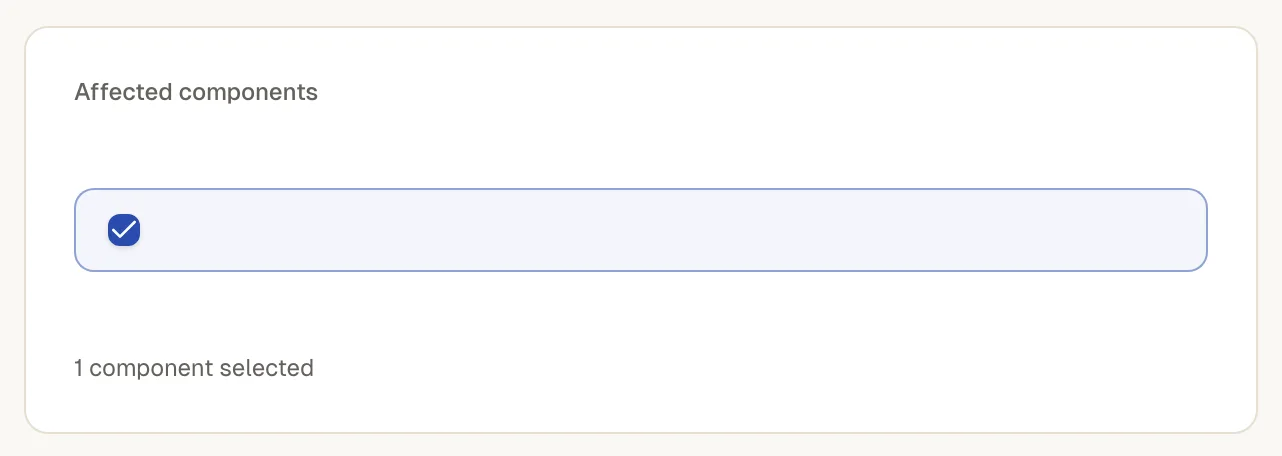
Choose the components
Tick the Affected components as your visitors know them. Pausing applies to the monitors among them.
-
Decide who is told and schedule it
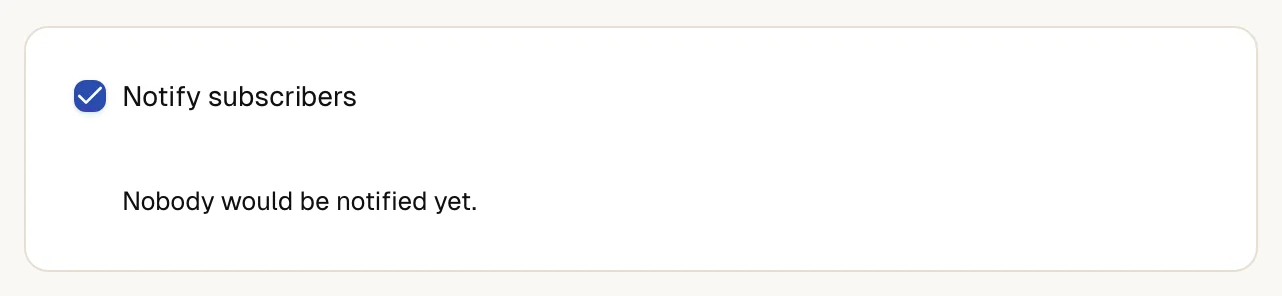
Leave Notify subscribers ticked to mail your subscribers, and choose a Reminder to subscribers if you want one. Select Schedule maintenance. If subscribers would be mailed, up4 asks you to confirm first. Without subscribers there is nothing to confirm.
The window is listed under Maintenance as scheduled, and visitors see it on your status page until it starts. With Start the window automatically and End the window automatically ticked, which is the default, it starts and ends by itself.
If something is off
The weekly window does not save.
You need at least one weekday, because a window without days would apply every day.
Alerts still arrive at the planned time.
Check the time zone of the window, and that the day you ticked is the day the window starts. A window from 23:00 to 01:00 belongs to the day it starts on.
Subscribers received nothing.
The mail goes to subscribers who follow maintenance and only if Notify subscribers was ticked. See publish a status page.
What up4 does not do here
- The weekly window repeats on the ticked weekdays. It does not take single dates. For a single date use a pause until a time, or maintenance on a status page.
- A monitor's weekly window and a status page maintenance are separate settings. Setting one does not set the other, and the weekly window is not announced to visitors.
- Inside a weekly window up4 does not check the monitor, so it cannot notice a real outage there. Keep windows as short as the work.
- Deleting a maintenance window removes it from the status page. Subscribers who were already told about it get no cancellation.
/v1/monitors/{monitorID} | In the app | API field |
|---|---|
| From · HH:MM, in the window's time zone. | maintenance_from |
| Until | maintenance_to |
| Timezone · An IANA zone such as Europe/Berlin. | maintenance_timezone |
| On these days · Three-letter day codes; an empty list means every day. | maintenance_weekdays |
/v1/status-pages/{pageID}/updates | In the app | API field |
|---|---|
| Title · Send the entry as a maintenance update with status scheduled. | title |
| Start date · One timestamp; the app joins start date and start time. | starts_at |
| End date · One timestamp; the app joins end date and end time. | ends_at |
| Repeat · none, weekly or monthly. | recurrence |
| During the window · none keeps checking, pause_checks pauses the affected monitors. | monitor_mode |
| Affected components | affected_resource_ids |
| Notify subscribers | notify_subscribers |
Was this page helpful?