Build an alert plan
Afterwards an outage nobody answers climbs a ladder: first one set of channels, then the next after a wait, until someone acknowledges.
- Who: Any role except Viewer
- Time: About five minutes
- What you need: At least one alert channel
For a plan with several steps, one channel per person or service you want to reach.
Steps
-
Start a new plan
Select Create alert plan (New alert plan once you have a plan) and give it an Alert plan name. A name that says what it protects works best. The form tells you what is still missing, starting with the name.

-
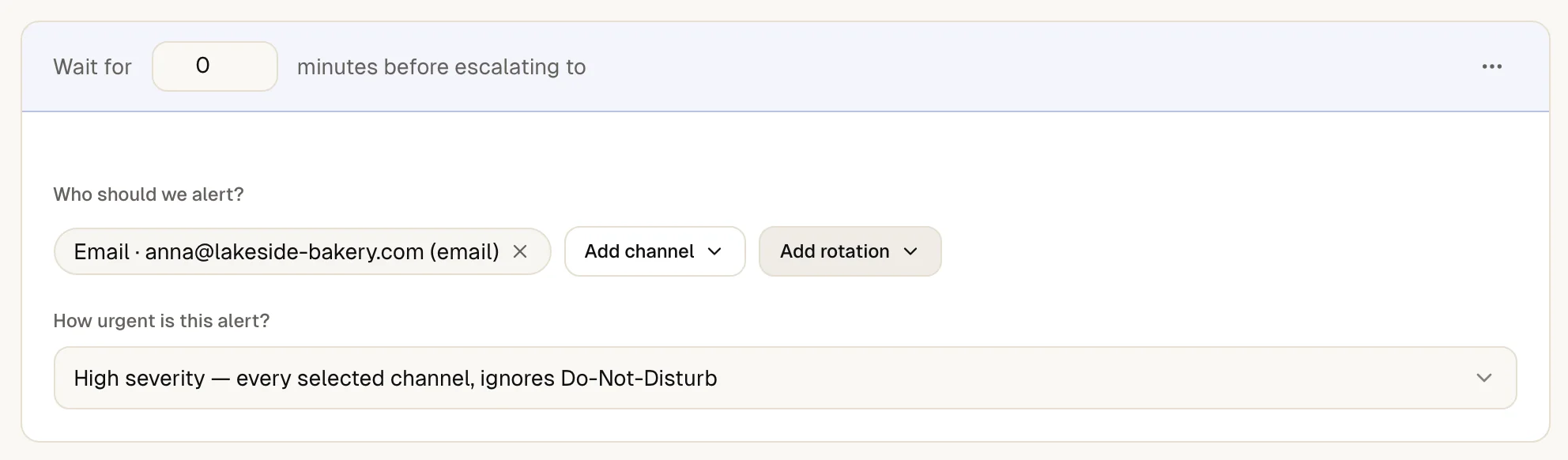
Choose who the first step alerts
Under Who should we alert? select Add channel and pick one or more channels. Then answer How urgent is this alert?:
- High severity — every selected channel, ignores Do-Not-Disturb
- Phone calls only
- SMS only — text message via Twilio
- Low severity — email only, respects Do-Not-Disturb
To reach whoever is on call instead of a fixed channel, select Add rotation and pick a rotation. A rotation reaches whoever is on call when the step fires, on their own alert channels. How to set one up: set up on-call.
The first step can fire the moment the incident opens. If you enter a wait for it, up4 holds it back for that long.
-
Add the next step and set its wait
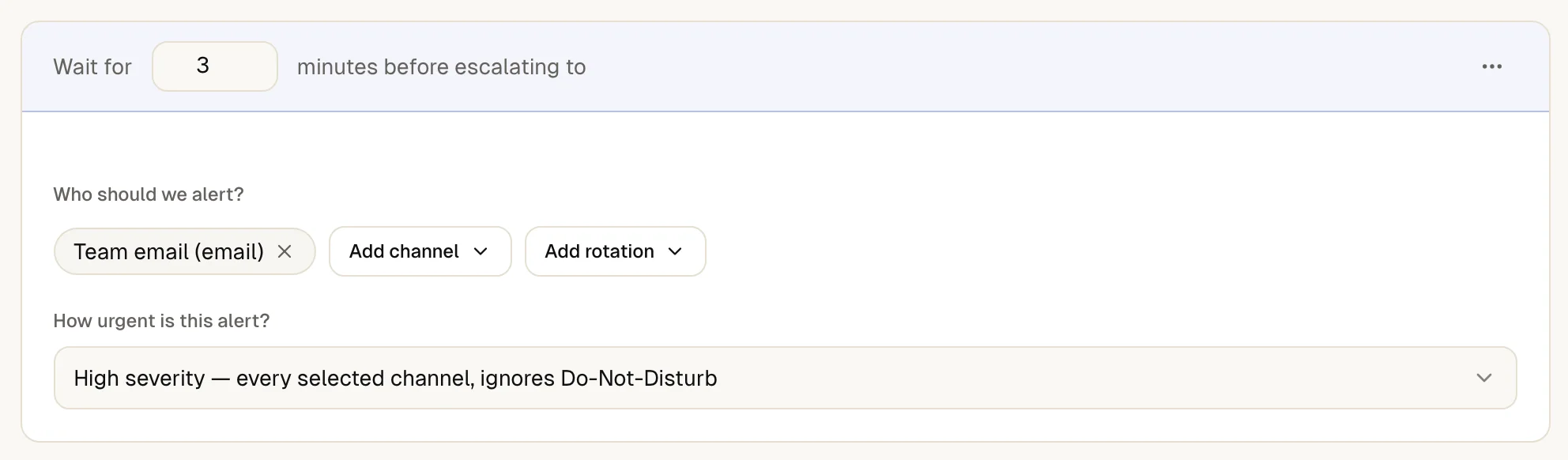
Select Add escalation step. Under Wait for enter how many minutes up4 waits for an acknowledgement before it alerts this step. Every step after the first waits at least 1 minute.
Pick the channels of the new step the same way as for the first one. Typical shape: a chat message to the team first, then a phone call to one person after a few minutes, then the wider channel.
-
Decide whether the plan repeats
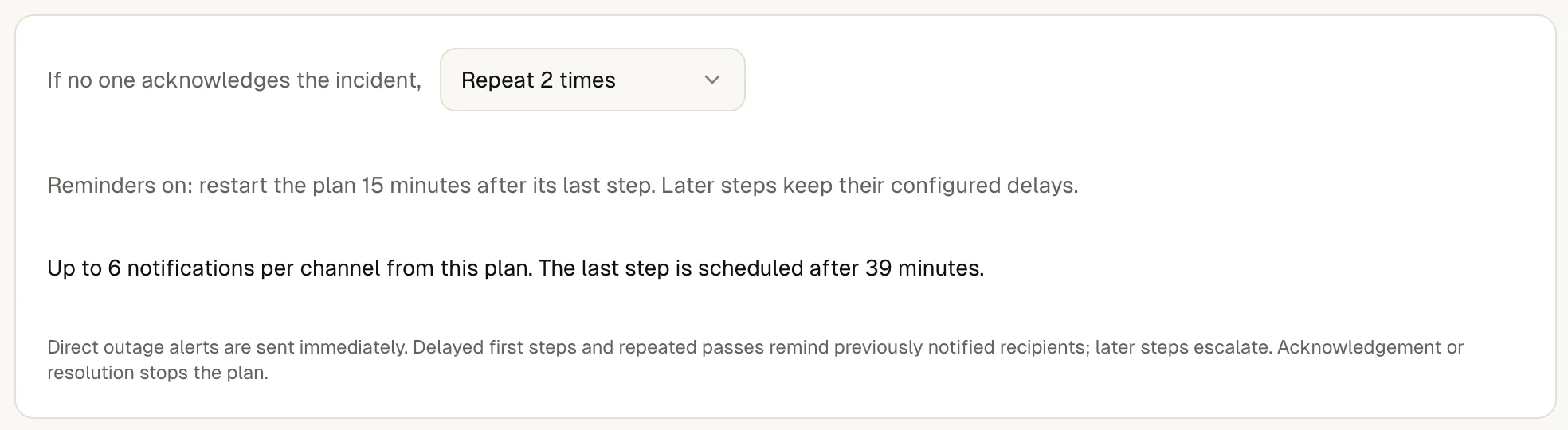
Under Reminders after the last step choose don't repeat or repeat up to 8 times. A repeat starts the plan again from its first step after the interval the form shows underneath.
-
Create the plan
Select Create plan. A plan does nothing until a monitor uses it, so the page asks Which monitors should use Critical services?

-
Attach the plan to monitors
Select the monitors that should use the plan, then Apply to 2 monitors. Choose Not now to decide later. The list of plans then counts them under Attached.
You can also open the edit page of a monitor and choose the plan under Alert plan. Channels you also select under Alert channels stay direct recipients. Pages people in steps until someone acknowledges, on top of the channels above.

-
Test the plan
In the list, open the row menu of the plan and select Edit. The box Test this alert plan sends one saved step right away with Test selected step now. Start full timed run plays the whole plan with its saved waits. The app asks you to confirm and states that this does not create an incident.
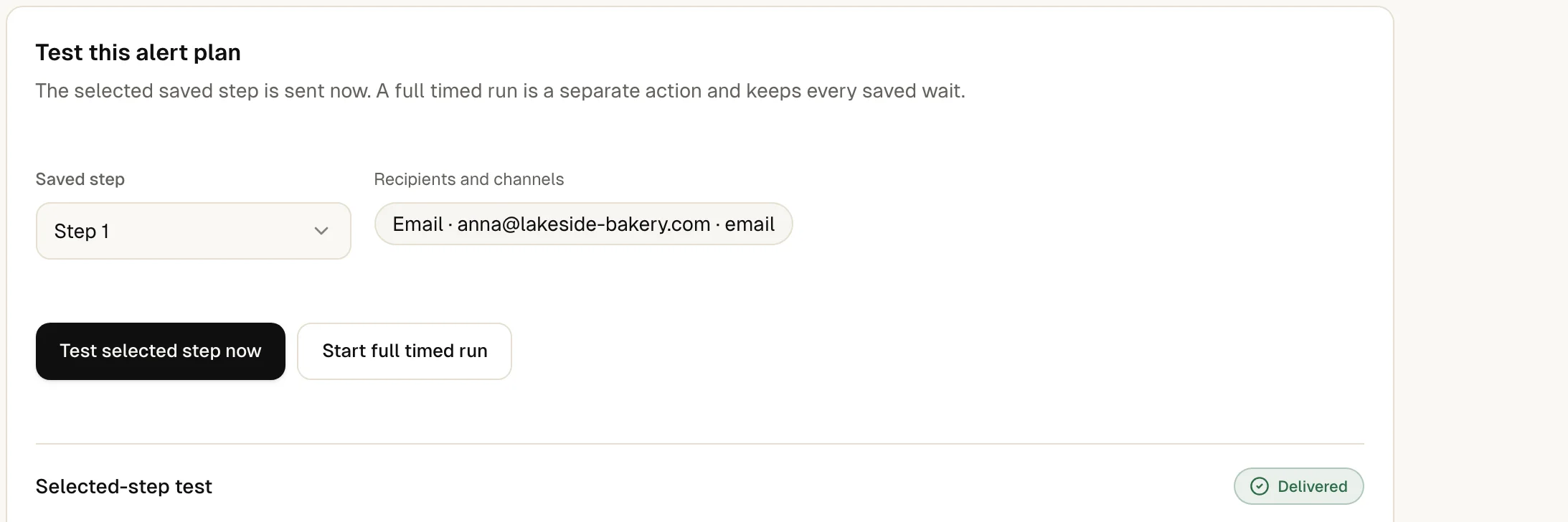
The test reaches the channels of the step you picked, and the box shows Delivered. No incident is created.
In the list of plans the monitor count under Attached goes up, and the column Last paged fills in after the plan has really alerted somebody.
During a real outage the next step fires only while nobody has acknowledged the incident. Direct outage alerts are sent immediately. Delayed first steps and repeated passes remind previously notified recipients; later steps escalate. Acknowledgement or resolution stops the plan.
If something is off
The form will not save.
It names the reason: Give the plan a name. Pick at least one channel or rotation for every step. From step 2 on, wait at least 1 minute.
A step warns that it reaches nobody.
The step's urgency allows only some channel types, for example phone calls only, and none of the step's channels is one of them. Add a matching channel or choose another urgency.
The monitor went down and the plan stayed quiet.
Check that the plan is attached on the monitor's edit page, that the monitor is not paused or in a maintenance window, and that the outage was confirmed. When you get alerted lists the rules.
What up4 does not do here
- A step alerts alert channels and on-call rotations. A rotation reaches the person on call through the alert channels that person added themselves; if there are none, the incident timeline says so and the step's other targets still go out.
- A plan stops as soon as somebody acknowledges the incident or it resolves. Pressing 1 on a phone call acknowledges.
- A phone call goes out once per incident and plan step. Repeats of the same step place no new call.
- The form shows the current limit of steps per plan and channels per step. A plan that was valid before a limit changed keeps running and is checked again on its next edit.
- A Company-level plan can use only Company-level channels. A plan for a client can use Company channels and that client's own channels.
- Changes to a plan apply to every monitor that uses it.
- Alert plans belong to monitors. Scheduled jobs do not use them.
- The interface offers up to 8 repeats. Through the API a higher number is stored as no repeats instead of being rejected.
- The waits are timers, not delivery promises. How fast a message arrives depends on the channel.
/v1/escalation-policies | In the app | API field |
|---|---|
| Alert plan name | name |
| Wait for · seconds; from step 2 on at least 60 | steps[].wait_seconds |
| Who should we alert? · a list of alert channel ids | steps[].targets |
| How urgent is this alert? · high, voice, sms or low | steps[].urgency |
| Reminders after the last step · 0 to 8 | repeat_count |
Was this page helpful?