Import monitors from a file
Afterwards your websites from a CSV file or a list of addresses run as up4 monitors, with their Clients, intervals and alert settings. Up to 500 rows per import, reviewed row by row first.
- Who: Any role except Viewer
- Time: About ten minutes
- Cost: About €0.39 a month from your credit
You need a list with one address per line, or a CSV file with a header row, and access to the Clients you import for. The amount is for a website checked every minute from one region; each extra region adds the same again. The preview shows the total for your import.
Prepare the file
Either format works. The import creates new monitors. It does not bring over past checks, incidents, status pages or subscribers, so keep the old tool running until you have seen the new checks and alerts work.
- URL list. One address per line. Blank lines and lines starting with # are ignored.
- CSV or TSV. A header row, then one website per row. Commas, semicolons and tabs work. Put a value that contains the delimiter in double quotes, and write a quote inside a quoted value twice. Excel files must be saved as CSV first. YAML and JSON are not accepted. The file can be up to 2 MB.
Download the CSV template, replace the examples and keep the header row:
name,url,client,interval,tags
Main website,https://example.com,Lakeside,1m,production
"Shop, English",https://example.org/shop,Verde,5m,"production, shop"
Agency website,https://example.net,Company,1m,internal
Choose the columns
up4 maps a column by its header automatically. Capitals, spaces and hyphens do not matter, so Client Name works like client_name. A header up4 does not know is mapped by hand in the next step. Empty cells take the shared default you choose there; a value in a row wins over the default.
| Header in your file | Shown in up4 as | What to enter |
|---|---|---|
| urlalso: target, website, address | URL / target | The address to check. A bare domain gets https://. This column is required. |
| namealso: friendly_name, monitor_name | Name | Display name. Optional; the preview shows the name up4 generates. |
| clientalso: client_name, customer, kunde | Client name | An existing Client. Company (also company-level) assigns no Client. A column with the Client ID, named client_id, works too. |
| monitor_group_namealso: group | Group name | An existing group of this row’s Client. A column named monitor_group_id takes the ID. |
| interval_secondsalso: interval | Interval (seconds or 1m / 5m) | Whole seconds or a duration: 60, 60s, 1m, 1h. A value below your plan’s shortest interval is refused in the preview. |
| regionsalso: region | Regions (eu | us | asia | au) | eu, us, asia or au, separated by | or a comma. Only regions with a live checker are accepted. |
| tagsalso: tag | Tags | Free text such as production, shop. Quote the cell if it contains your delimiter. |
| keyword | Required keyword | Text the response must contain. The check reads the page with GET. |
| keyword_case_insensitive | Case-insensitive keyword | true or false; yes, no, 1 and 0 also work. |
| alert_plan_namealso: alert | Alert plan name | An existing Alert plan of this row’s Client. A column named escalation_policy_id takes the ID. |
| alert_channel_namesalso: channels | Channel names (separated by |) | Existing Alert channels, for example Agency email|Support Slack. A column named notification_channel_ids takes IDs. |
| monitor_type | Monitor type | http, ping, tcp or dns. Leave it empty for a website. |
| expected_status_code | Expected HTTP status | A whole number such as 200. The HTTP method has its own column, http_method. |
| follow_redirects | Follow redirects | true or false; yes, no, 1 and 0 also work. |
| confirmation_period | Confirmation period (seconds) | Whole seconds of extra wait before a failure alerts. The column for the way back is recovery_period. 0 adds no extra wait. |
| tcp_host | TCP host | For TCP monitors, such as db.example.com. The port goes in tcp_port. |
| dns_query | DNS name | For DNS monitors, the name to look up. The record type goes in dns_type, the expected answer in dns_expected. |
| state | State (PAUSED starts paused) | PAUSED creates the monitor paused. Leave it empty otherwise. |
Every other setting of the monitor form has a column too. Open Map columns to see the full list. A file from Export monitors (CSV) imports again as it is, also in another up4 account. Its id column is ignored. Passwords, request headers and proxy settings are not exported.
Tags are saved as text under the metadata key tags. They do not create groups, and the monitor list has no tag filter. Use Clients and groups to organize the list. Client, group, Alert plan and Alert channel names must match existing ones, ignoring capitals. Use the ID columns if two share a name. Importing a channel name assigns an existing channel; it never creates a channel or copies credentials.
Steps
-
Add your file
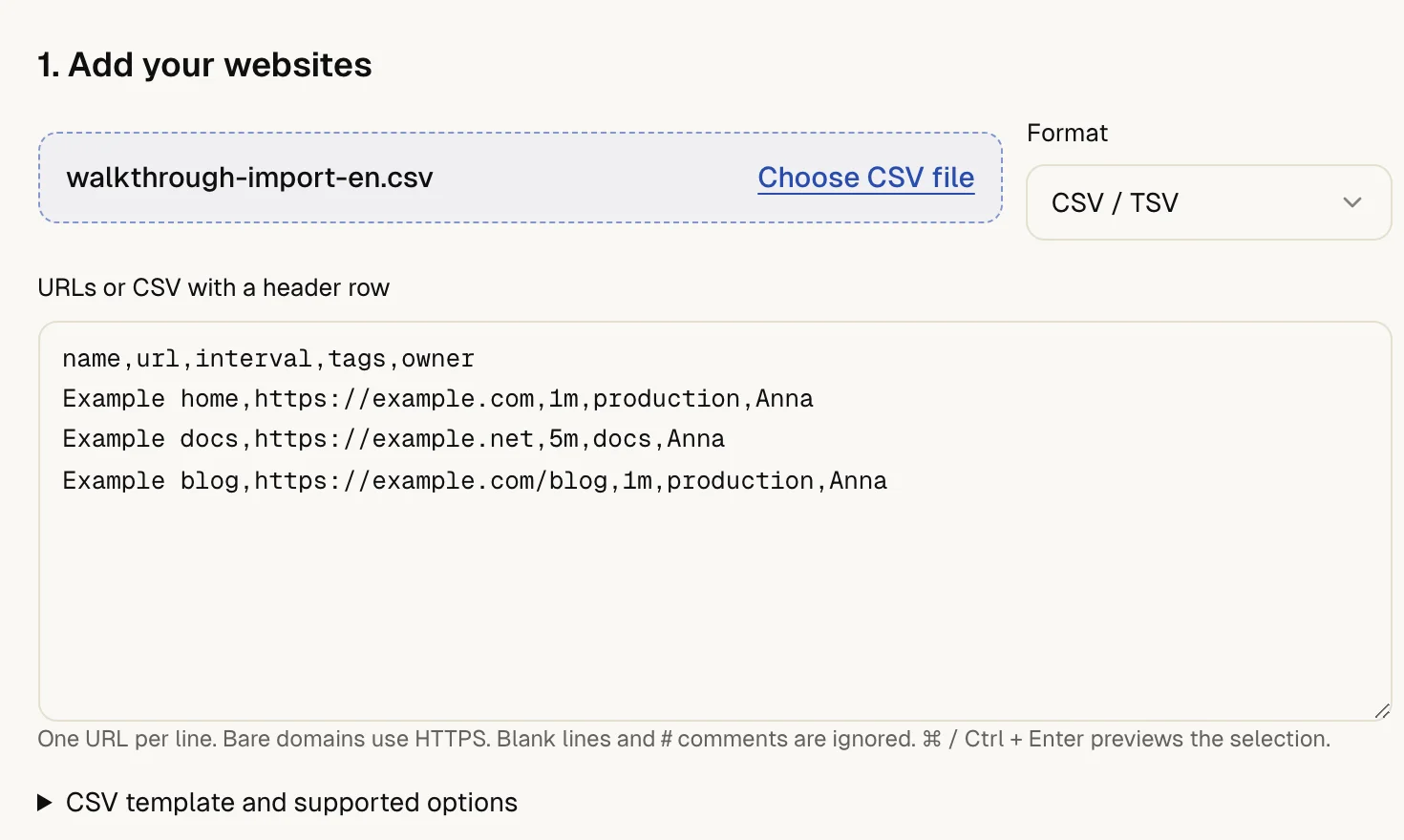
Select Choose CSV file or paste your list into the field. A file you choose is read as CSV. For a pasted list, up4 detects the format from the header; if it guesses wrong, set Format.
-
Map the columns
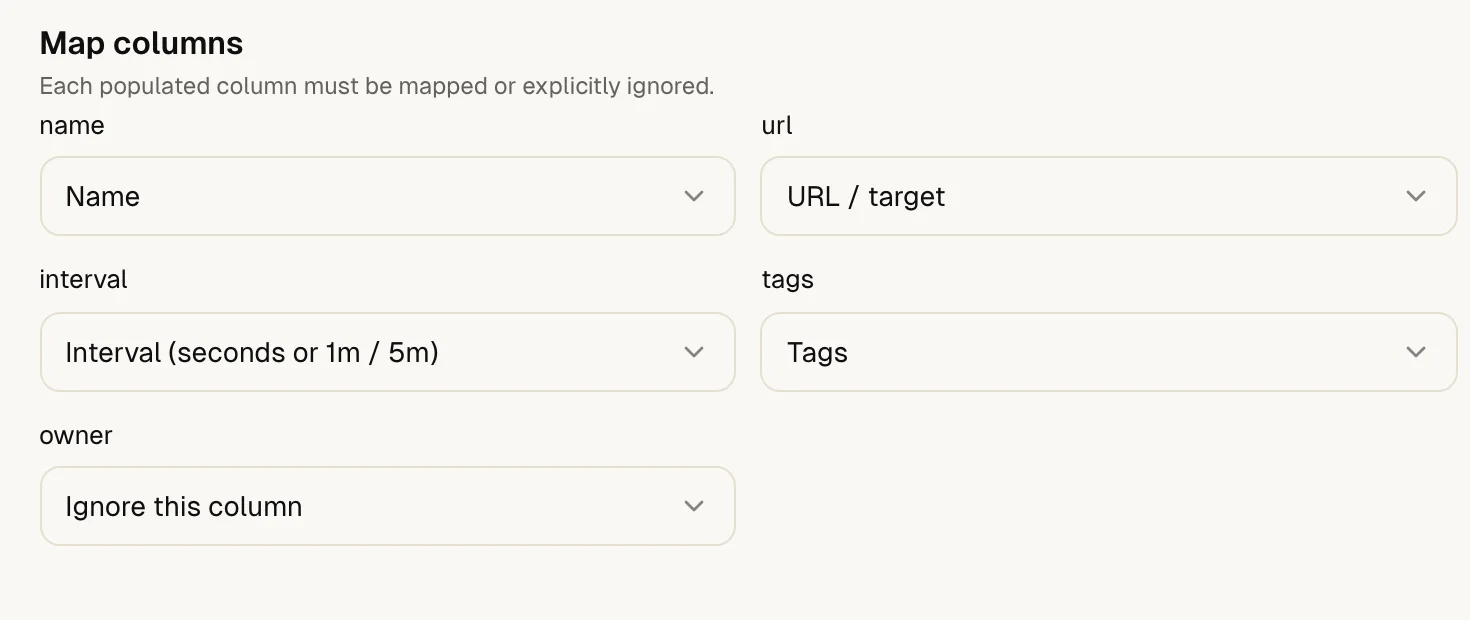
Check Map columns. Every column with data must be mapped to a field or set to Ignore this column. An ignored column is not imported.
-
Choose shared defaults
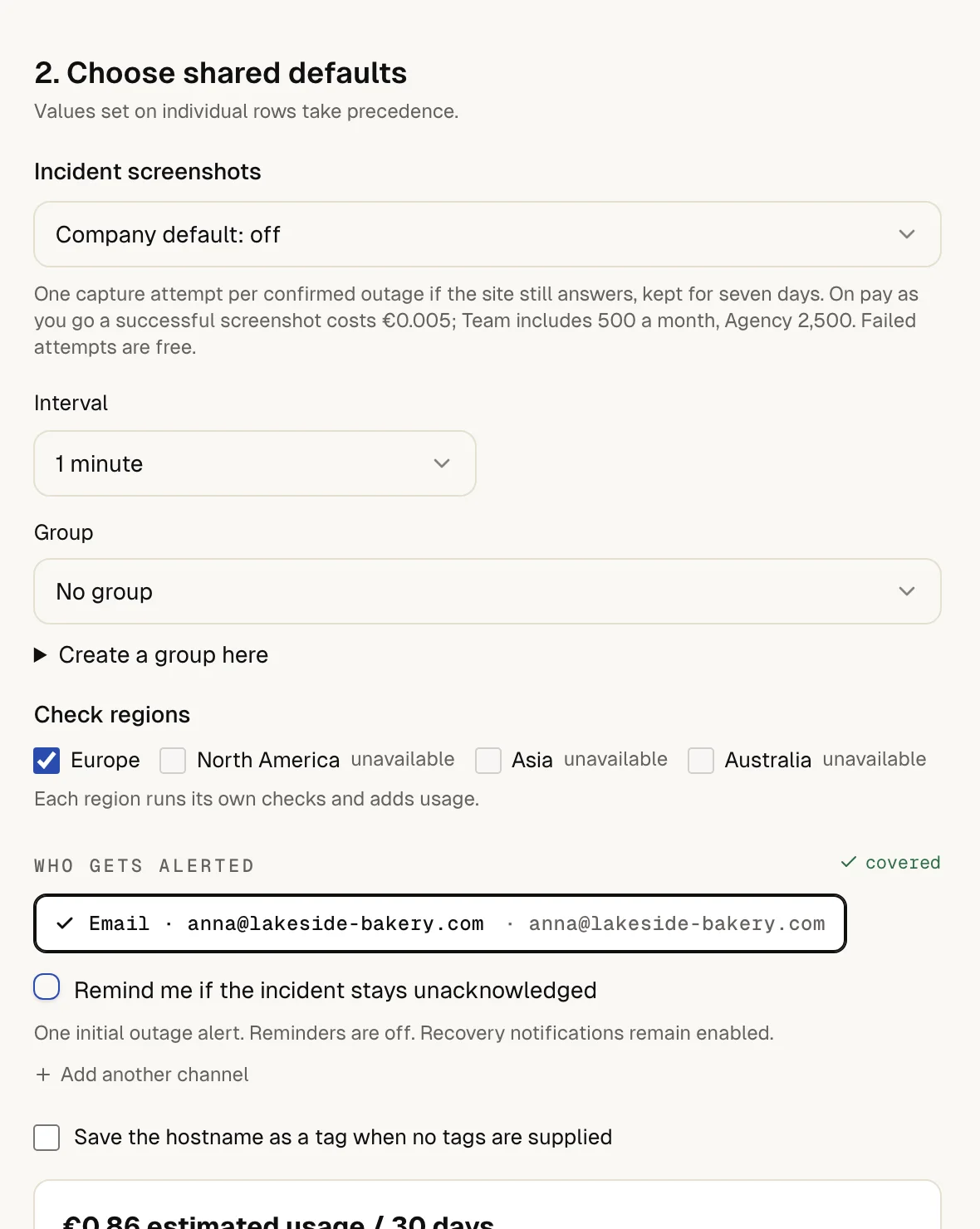
Under 2. Choose shared defaults, set the interval, group and regions that apply to rows that do not set their own, and who gets alerted. With Clients turned on, the Client is a default too. For several Clients, put the Client on each row. A region marked unavailable has no healthy checker right now.
-
Preview the import
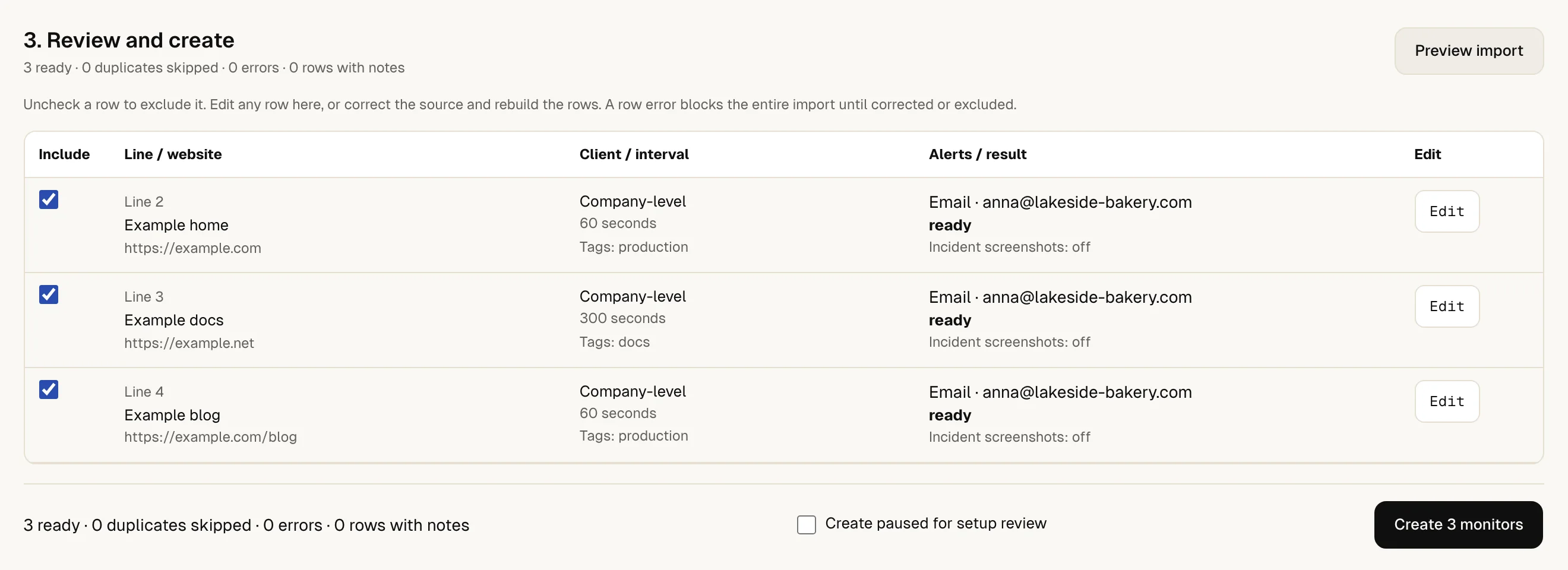
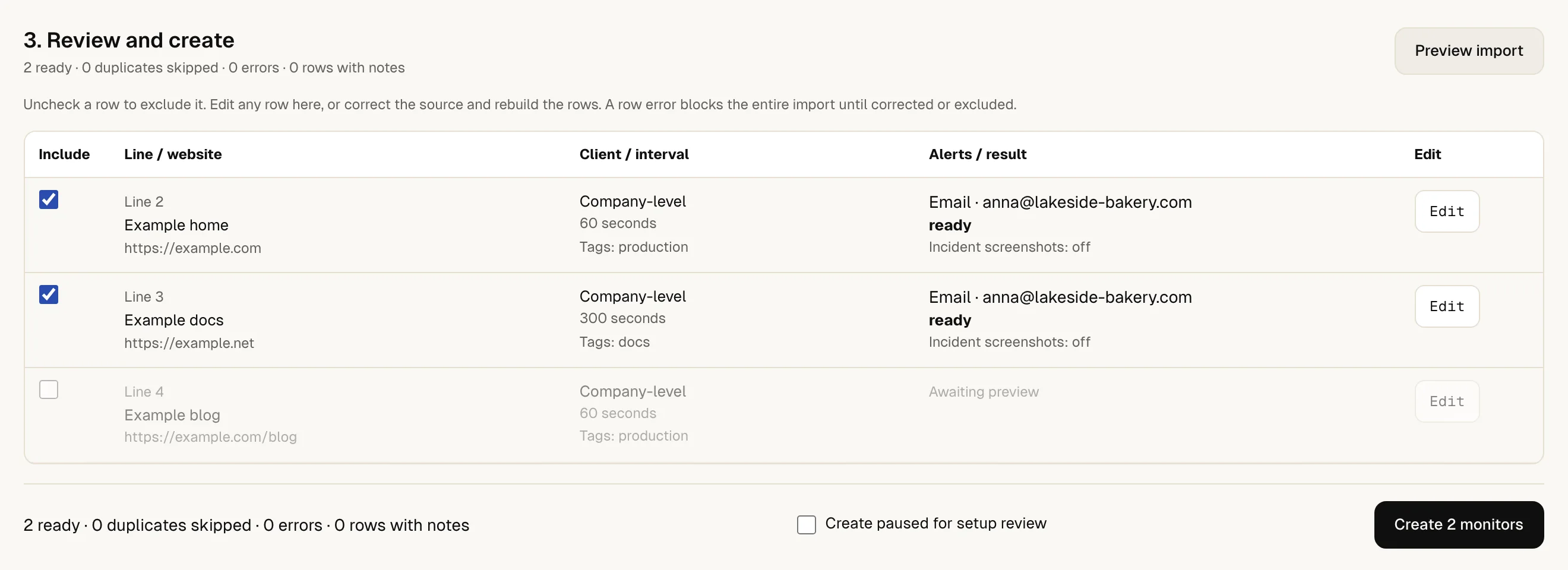
Select Preview import. Nothing is created yet. up4 checks every row, shows an estimate of the usage for 30 days and the number of monitors against your plan's limit.
-
Correct the rows
Uncheck a row to leave it out, or select Edit to fix it. After every change, select Preview import again: the create button only works on a current preview. For missing Clients, up4 offers to create them. A website that already exists with the same check settings is skipped and stays as it is. Tick Create even if this target already exists (intentional duplicate) only for a second monitor you want on purpose.
-
Create the monitors
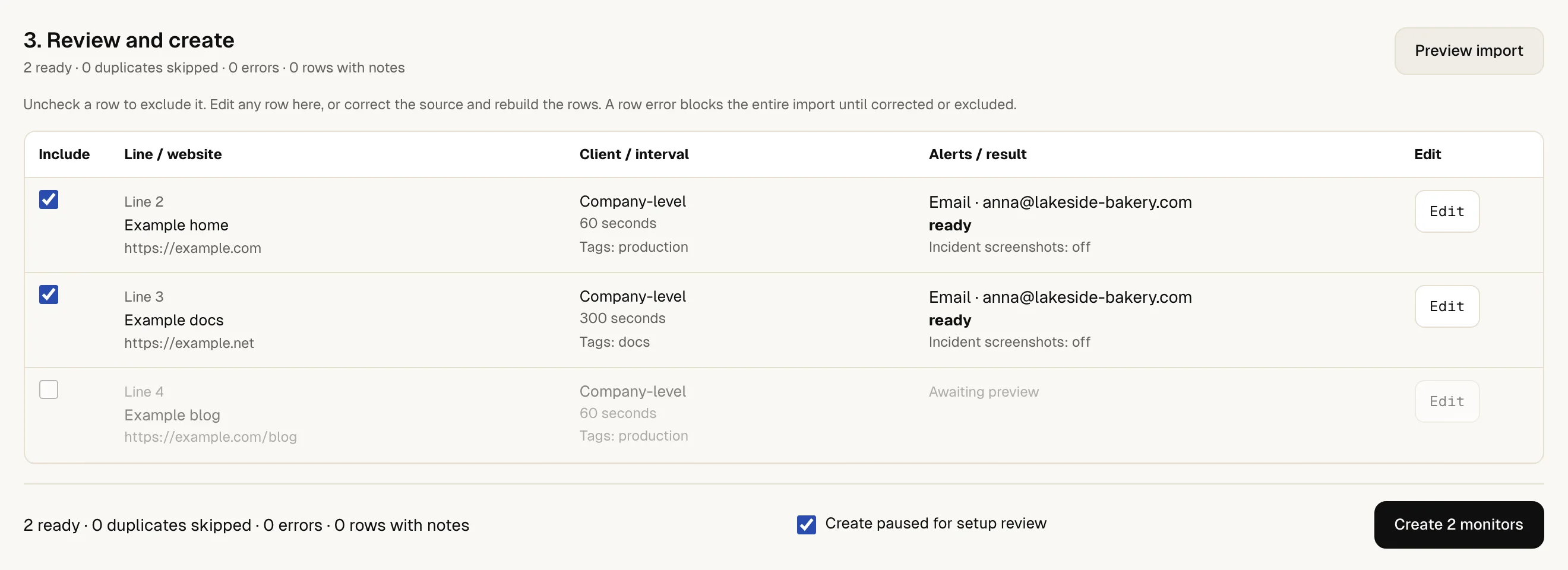
To look over the setup before checks start, tick Create paused for setup review. That changes the import, so select Preview import once more. Then select the create button, which names the number of monitors. The monitors and their settings are saved together: one row error stops the whole batch, and nothing is created.
up4 reports how many monitors it created, for example 2 monitors created · 0 duplicates skipped. Select View imported monitors to see exactly these monitors, and Test alert delivery to send a test through an alert channel.
Running monitors show pending until their first check. Recent imports (1) lists past imports; Open receipt shows what an import saved.
If something is off
Your CSV appears as a URL list, or the columns are mixed up.
Set Format to CSV, keep the header row and check quotes and delimiters. Every row needs as many cells as the header.
A Client, group, Alert plan or channel is not found.
Create it first or correct the name. Check that you have access to that Client.
The connection dropped while creating.
Stay in the same tab and select Retrieve import result. It returns the original result without creating the monitors twice. If the tab is closed, check Recent imports (1) and the monitor list before you import again.
What up4 does not do here
- An import takes 1 to 500 rows and a file up to 2 MB.
- Your plan has a limit for monitors, and paused monitors count towards it. The preview shows how many you have and the limit.
- Each region runs its own checks and adds usage: three regions use three times the checks of one.
- The draft stays in your browser tab only while the tab lives. Keep your original file.
- Scheduled jobs are not imported. Create them one by one.
- Moving from another tool? The pages under moving to up4 map that tool's words to up4's.
/v1/monitors/batch/dry-run The API takes structured rows, not raw CSV: each row has a source line and its fields, and tags go under the metadata of that row. Use a key that may write monitors and reach the Clients involved. Validate 1 to 500 rows with this call, at most 2 MB per request. Then send the unchanged request with its returned preview ID to POST /v1/monitors/batch and a unique Idempotency-Key. After a lost response, repeat that exact request and key: the first success returns 201, a replay 200, and different input with the same key 409. GET /v1/monitors/batch/history lists receipts. See the monitors reference.
Was this page helpful?