Set up on-call
Afterwards alerts reach whoever holds the pager, and up4 shows who that is now, who takes over next and who covers a holiday.
- Who: Any role except Viewer
- Time: About five minutes
- What you need: At least one member in your Company
To take turns you need two or more.
Steps
-
Name the rotation
Select Create rotation and enter a Name, for example Weekend cover.

-
Add the members
Under Team members select Add team member... for each person. Choose colleagues to take turns being on-call. They will be rotated in the order listed below.
The list offers the members of your Company. If a colleague is missing, invite them under team and roles first.

-
Set when the shift changes
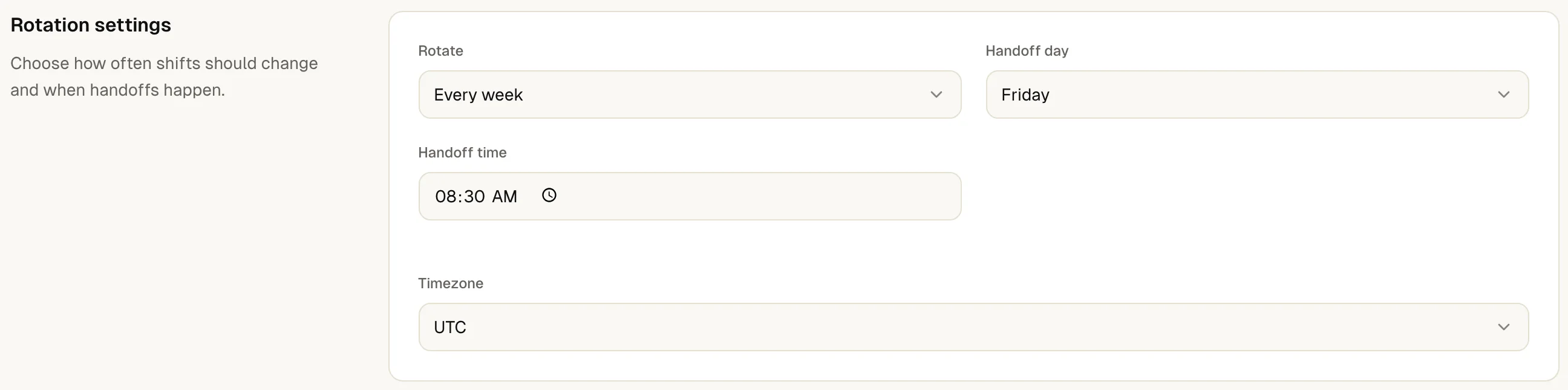
Under Rotate choose Every day or Every week. Set the Handoff time and the Timezone it is measured in.
A weekly rotation also needs a Handoff day: the shift changes on that weekday at the hand-over time. A daily rotation changes every day at that time. The first person in the list is on call until the first hand-over.
-
Check the preview and create the rotation
The Preview lists the members in order. If it reads right, select Create rotation.

-
Send alerts to whoever is on call
A rotation only alerts someone once an alert plan uses it. Open the plan under build an alert plan, select Add rotation in a step and pick the rotation. A rotation reaches whoever is on call when the step fires, on their own alert channels.
Own alert channels are the ones a person added themselves under Alert channels. Ask every member to add at least one, for example their own e-mail address or phone number.

-
Cover a shift
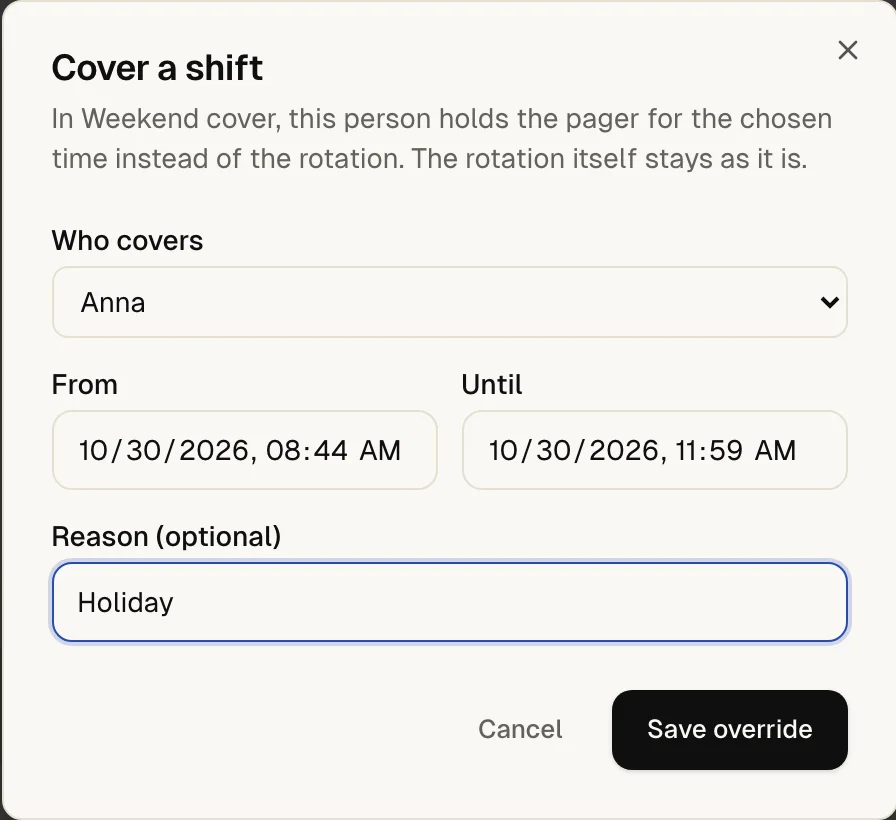
When someone is away, open the rotation and select Cover a shift. Under Who covers pick the person (anyone in your Company except viewers), set From and Until, add a Reason (optional) if you like and select Save override.
In Weekend cover, this person holds the pager for the chosen time instead of the rotation. The rotation itself stays as it is. To end a cover early, remove it with Remove.
The on-call page names the person under On call now and who follows under Next up. A covered time is marked · override.
The same name appears on the Alerting overview under On call right now.
When you test the alert plan, the step lists the alert channel it reached and the person on call through the rotation.
If something is off
The rotation will not save.
It needs a name and at least one member: Please enter a rotation name. Please add at least one team member.
The incident timeline says Rotation Weekend cover reached nobody.
Nobody was on call at that moment, or the person on call has no alert channel of their own. The step still alerted its other targets; with no other target the step failed. Add a member's own channel or a fallback channel to the step.
A rotation cannot be deleted.
An alert plan still uses it. Remove it from the plan's steps first.
The cover will not save.
Choose who covers. The end has to be after the start.
What up4 does not do here
- A cover replaces the rotation for its whole time, whoever would have been on duty.
- A rotation reaches the person on call only on the alert channels they added themselves, not on channels a colleague added for them.
- The hand-over keeps its wall-clock time across daylight saving changes in the rotation's time zone.
- Rotations, members and covers belong to your Company. In agency mode you can assign a rotation to a Client.
/v1/oncall-schedules | In the app | API field |
|---|---|
| Name | name |
| Team members · user ids in rotation order | member_ids |
| Rotation frequency · daily, weekly or custom | rotation_type |
| Handoff day | handoff_day |
| Handoff time | handoff_time |
| Timezone | timezone |
/v1/oncall-schedules/{scheduleID}/overrides | In the app | API field |
|---|---|
| Who covers | user_id |
| From | starts_at |
| Until | ends_at |
| Reason (optional) | reason |
Was this page helpful?