Send client reports
Afterwards a client gets a report by email every month or week, under your agency's name, logo and colours, as a link that opens without an account.
- Who: Any role except Viewer
- Time: About ten minutes
- What you need: At least one monitor with some history
To set the branding you need Company Owner or Admin; other roles except Viewer can create schedules. To send a report about one client, add the client first.
Steps
-
Set your report identity
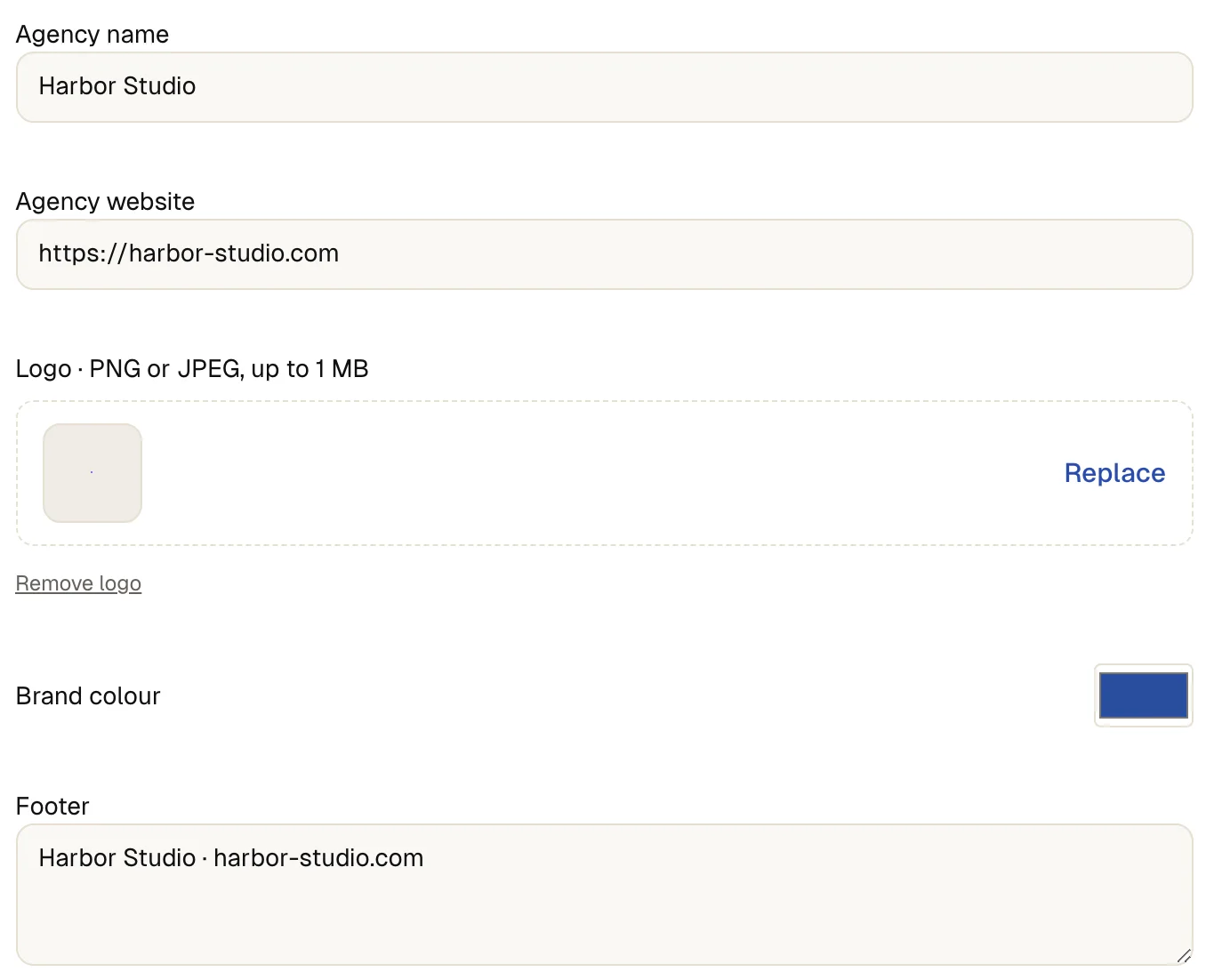
Open Company and find Report branding. Enter the Agency name and Agency website. Upload a logo (PNG or JPEG, up to 1 MB) with Upload logo.
Choose a Brand colour and a Footer. The PDF preview shows the header. Select Save changes when it looks right. Without clients turned on, the first two fields read Company name and Company website.
Branding applies to reports created after you save. Reports already created keep their look.
-
Create a schedule
Open Reports, then Scheduled, and select New schedule. Enter a Name that the recipients will recognize, such as the client's name and the month.

-
Choose the report and the client
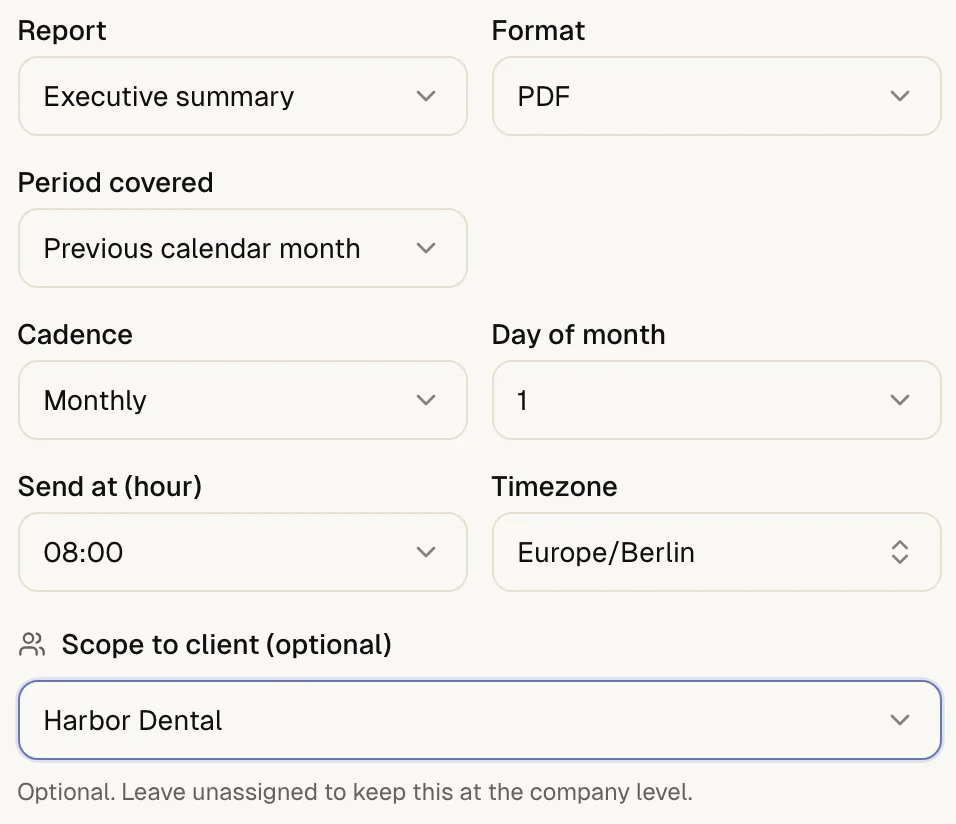
Pick the Report: Executive summary, SLA / service level, Response time, Incident analytics, Downtime ledger (evidence), Per-monitor report or Trends. For a first client report, start with the Executive summary.
Under Scope to client (optional) select the client, so the report contains only that client's monitors. Choose a Format: PDF, XLSX, CSV or JSON.
-
Choose period and rhythm
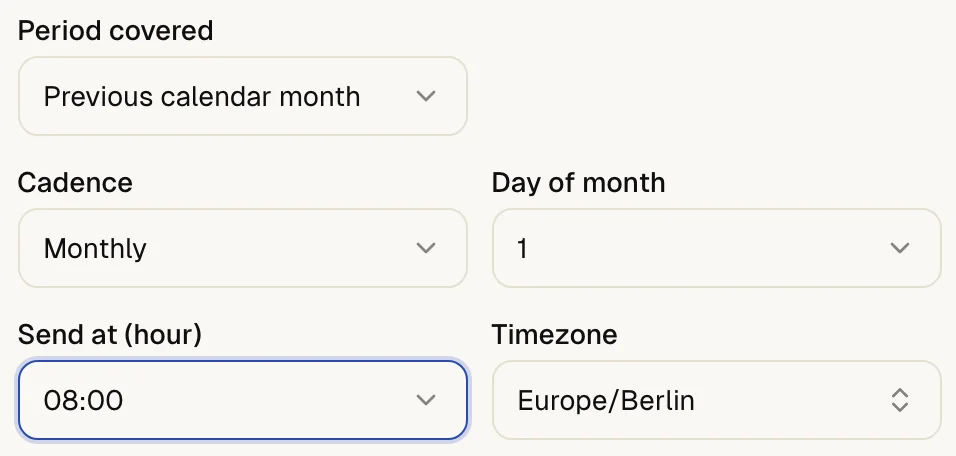
For a monthly report set Period covered to Previous calendar month. Select Monthly for the Cadence and a Day of month from 1 to 28. For a weekly report choose Weekly and a weekday.
Set Send at (hour) and the Timezone of the people reading it.
-
Add the recipients
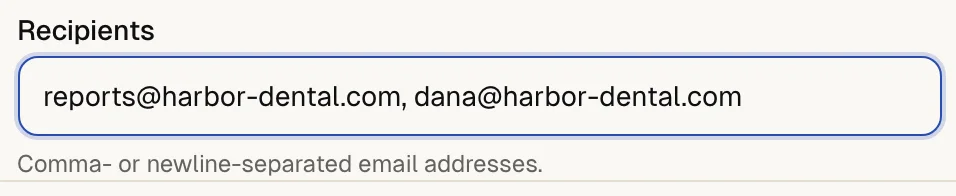
Enter the email addresses under Recipients, separated by commas or line breaks. One schedule takes up to 50 addresses. Report language sets the language of the report and of the email; left on automatic, it follows the client's communication language.
-
Check the preview and create
The line Next report shows which period the next report covers and when it goes out. If it reads right, select Create schedule. The list shows the schedules of the view you work in: a schedule for a client appears once you pick that client (or all clients) in the view switcher, not under your Company's own name.
-
Send one now to see the result
In the list, select Run now on the new schedule. Under Recent reports the report appears with its delivery state.

The recipients get an email from your agency with the report's name and period, your logo and footer, and a button that opens the report. The state of the run reads Sent to all recipients.
A report holds the headline figures of the period, each compared with the period before: service availability, services in scope, disruptions, total disruption time and typical response time. Below come a day-by-day availability chart and a table per monitor with availability, response times, incidents and checks. The other report types go deeper into one of these.
If something is off
The run shows Delivery failed or Delivery retry scheduled.
up4 retries failed deliveries by itself. Check the addresses of the recipients that did not receive it, then correct them in the schedule.
A run shows Skipped.
Monitoring was paused at that time. The schedule continues at its next slot once monitoring resumes.
A run shows Not stored.
The storage limit for report files is reached. Nothing was deleted. Free up space or ask for a higher limit, then run the schedule again.
What up4 does not do here
- The email carries a link, not an attachment. A report link that comes with a schedule stays valid for 90 days.
- Reports are sent from up4's own sending address. Your name, logo, colours and footer appear inside the email and the report. A sending address of your own is not offered.
- A monthly schedule runs on day 1 to 28, so that it exists in every month.
- A Company has an overall limit on schedules and recipients. Within a schedule, 50 recipients is the maximum.
- You can send the same report to a person without a schedule: open the run under Recent reports, select Share, name the link and choose whether it never expires. Without that choice it works for 90 days. Revoke a link under Share links and it stops opening at once.
- A client's own portal login is a separate feature. Give a client their own login.
/v1/reports/schedules | In the app | API field |
|---|---|
| Name | name |
| Report | report_type |
| Scope to client (optional) | client_id |
| Format | format |
| Recipients | recipients |
| Cadence | cadence |
| Day of month | day_of_month |
| Send at (hour) | send_hour |
| Timezone | timezone |
| Report language | language |
Was this page helpful?