Publish a status page
Afterwards your customers have a page that shows whether your services are up, follows your checks on its own and carries your updates during an outage.
- Who: Any role except Viewer
- Time: About ten minutes
- What you need: Monitors or scheduled jobs
They show on the status page. You can also add components that nobody checks and set their status by hand.
Steps
-
Name the page and choose its address
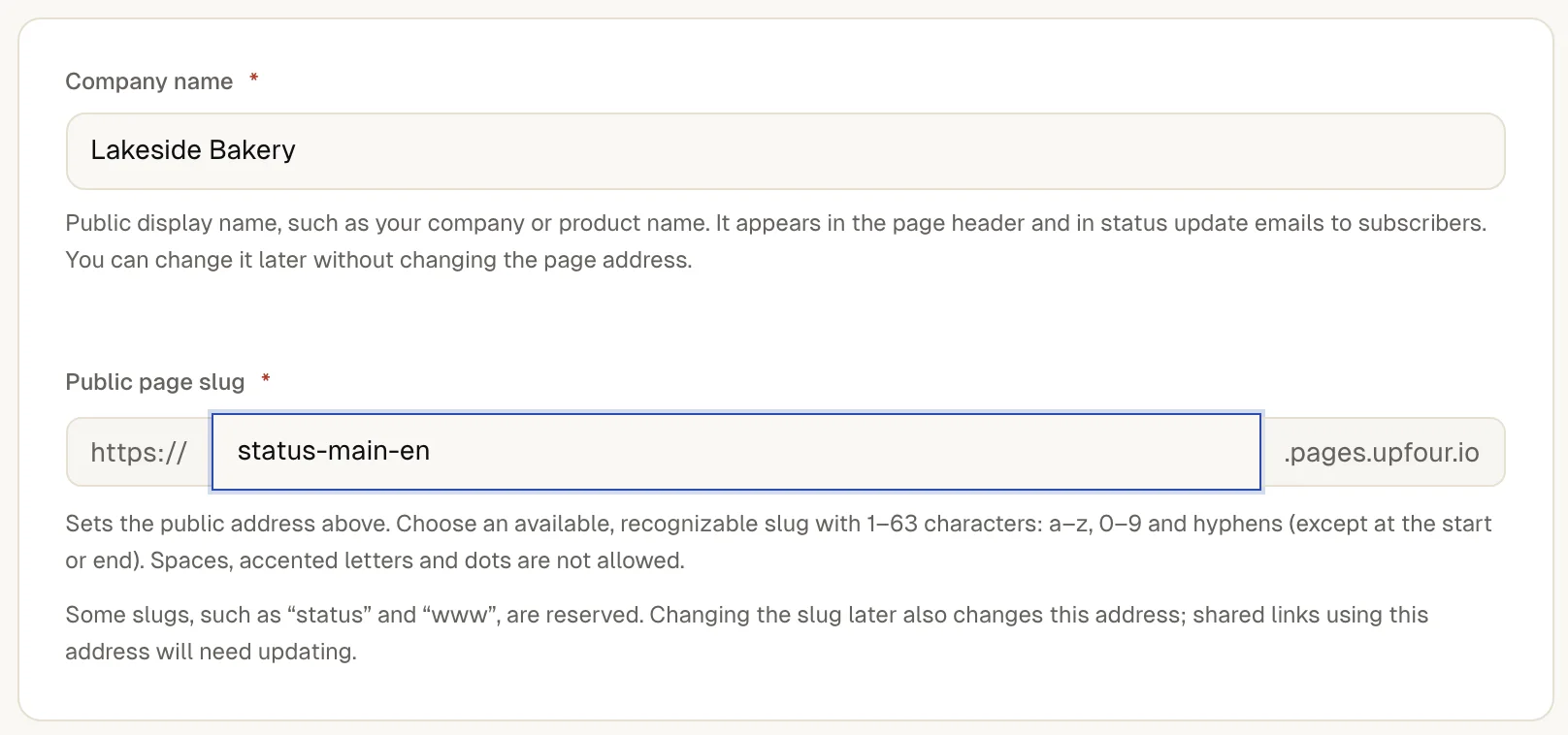
Enter the Company name visitors see, and a Public page slug. The slug is the first part of the page's address. If you change it later, the old address stops working. With no status page yet, the same place offers Create status page instead of New status page.
-
Choose what the page shows
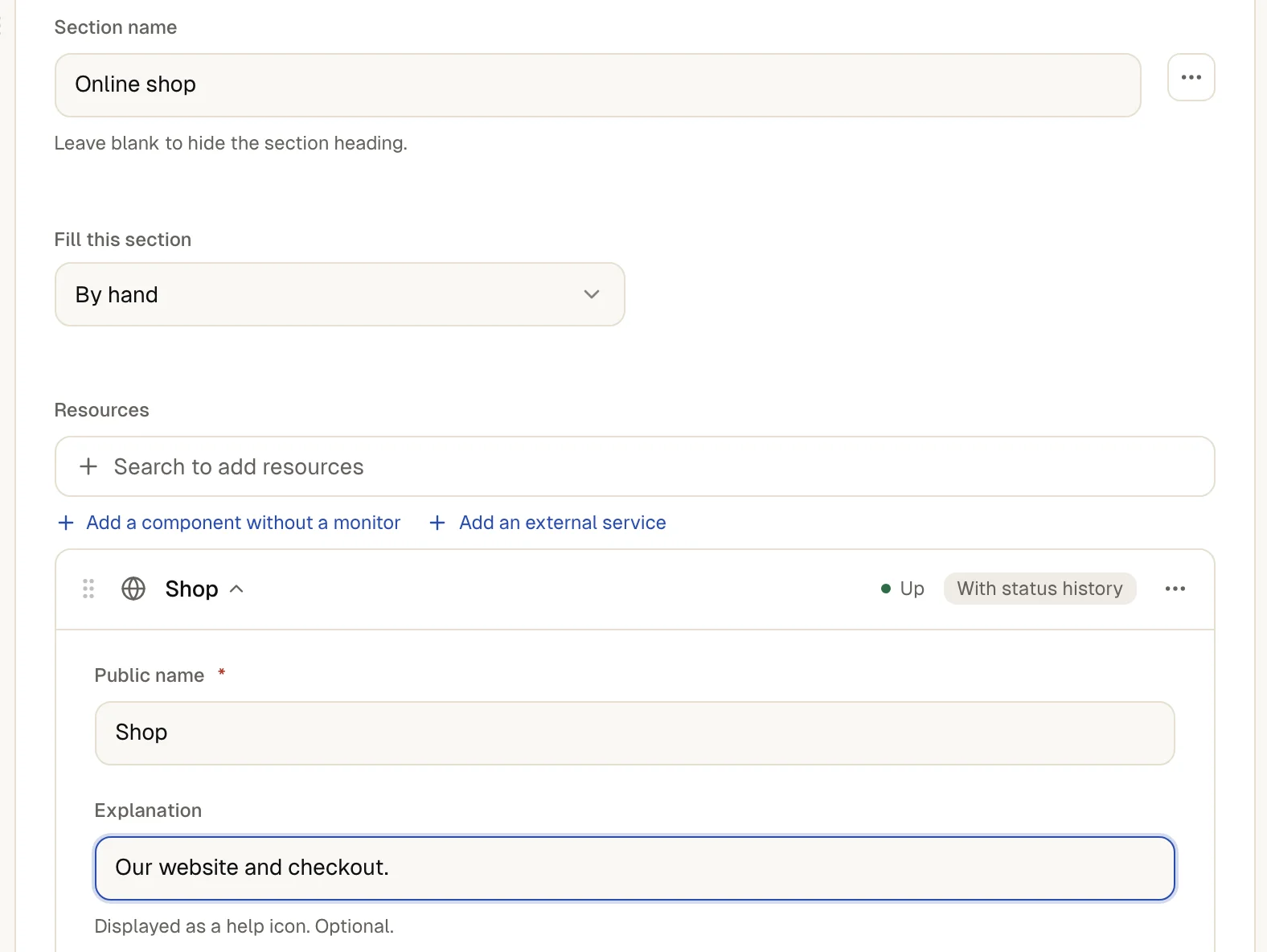
Open Structure. A new page starts with one empty section. Name it under Section name (leave it blank to hide the heading), then search under Resources and select the monitors and scheduled jobs for it. Select Add section for another section. Drag the cards to reorder them.
Select a component's row to open it. There you can set a Public name and an Explanation that shows as a help icon. Under Fill this section a section can also fill itself, so new monitors appear without anyone editing the page.
-
Add things you do not monitor
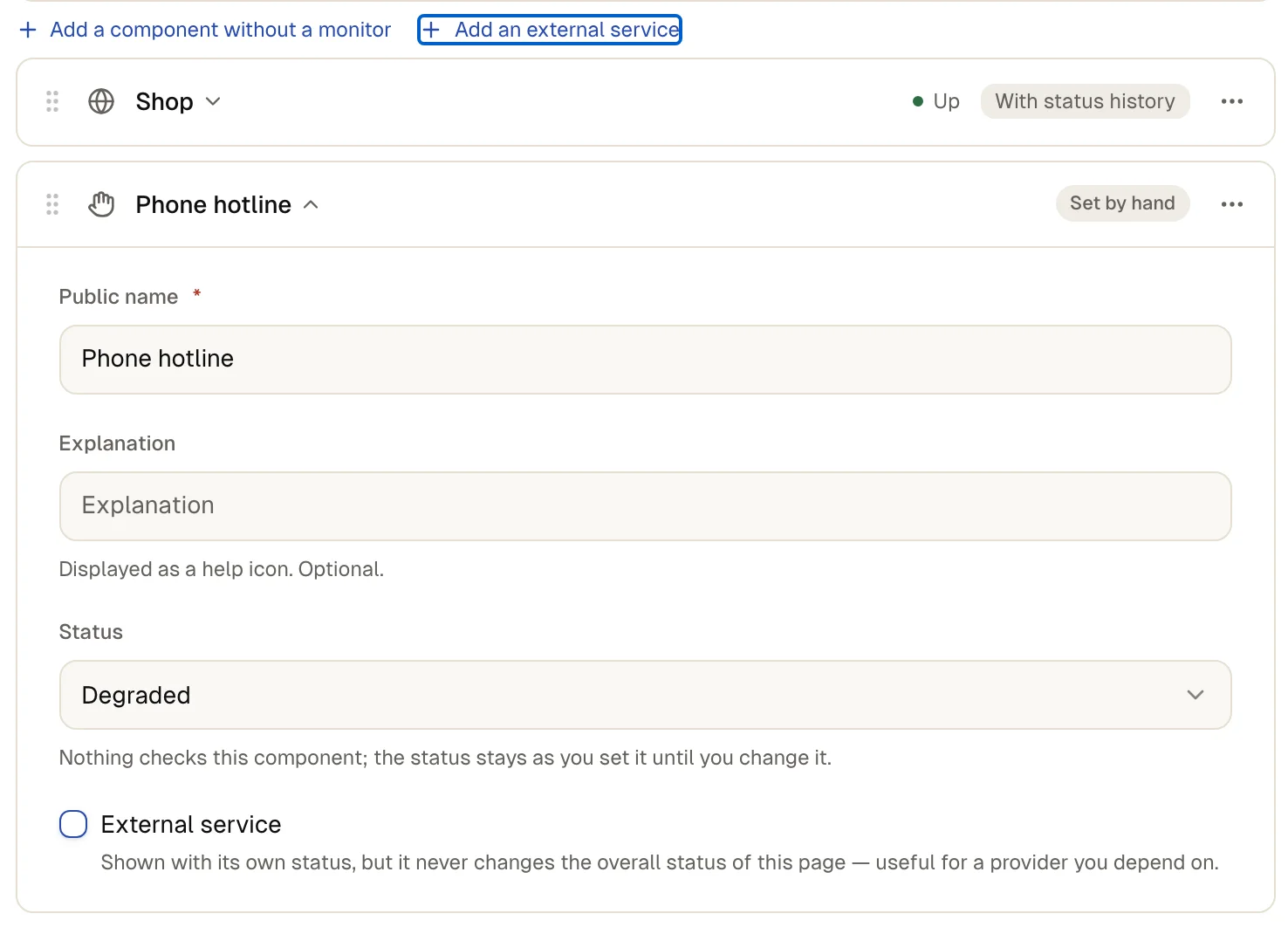
Select Add a component without a monitor for something up4 cannot check, such as a phone hotline, and set its Status yourself. It keeps that status until you change it.
To show a provider you depend on, select Add an external service. up4 reads the provider's own status page every five minutes. An external service never changes your page's overall status.
-
Choose a layout and your brand
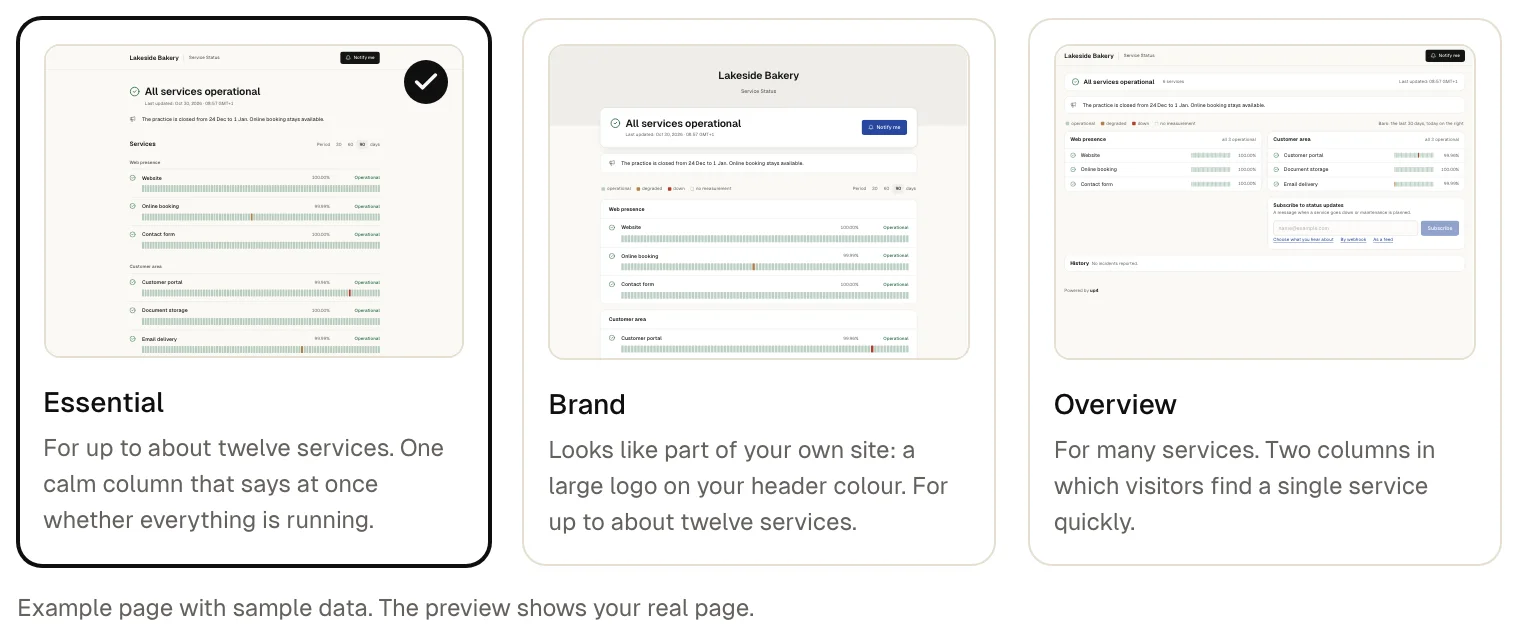
Under Settings open Brand & look and find Personalization. Pick a Layout:
- Essential is one calm column for up to about twelve services. It is the default.
- Brand puts your logo on your header colour, so the page looks like part of your site.
- Overview uses two columns with a row per service, for many services.
Add your logo and favicon, an accent colour, a Header colour and a Background. The preview beside the form is your real page. Status colours stay fixed on purpose, so green, amber and red always mean the same.
-
Create the page, then publish it
Select Create status page. A new page starts unpublished and visitors cannot reach it. When it looks right, select Publish status page, then View public page to open it.

-
Let people follow it
Visitors subscribe on the page. By default they follow by e-mail and confirm their address first, so nobody is signed up for someone else's outages. The page can also be followed by webhook or feed, for everything or only for incidents or maintenance.
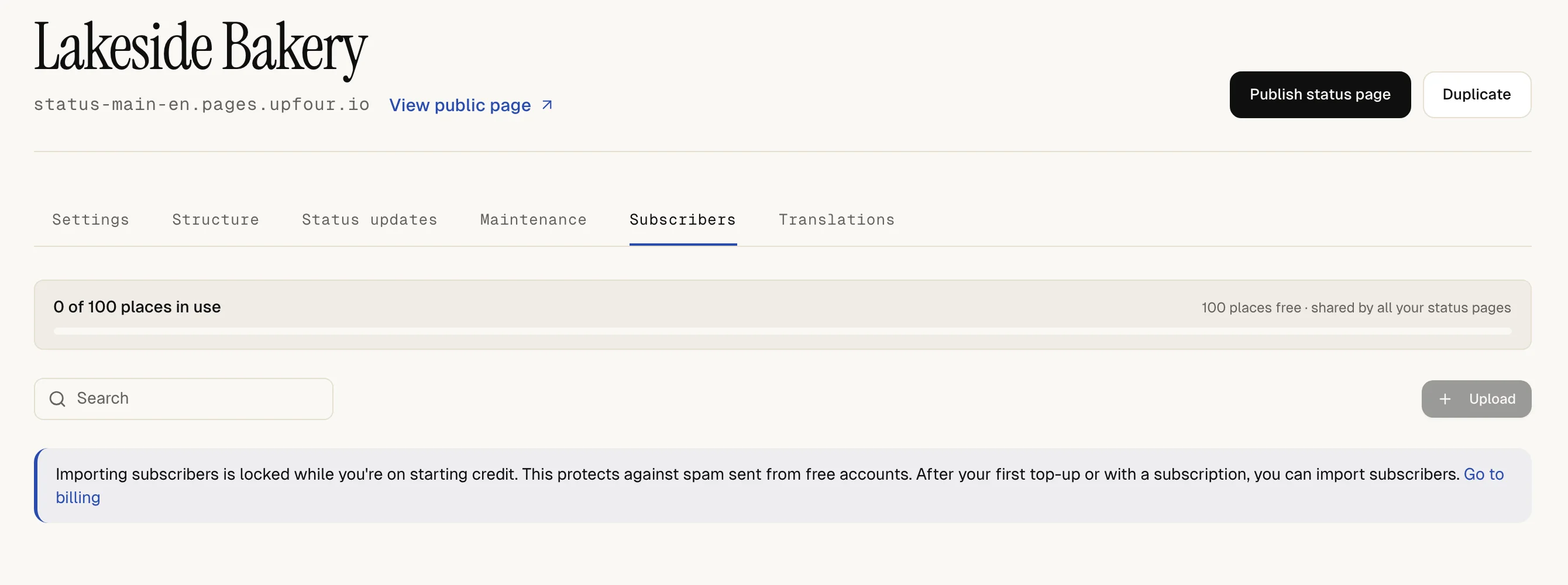
Switch this off under Subscribing to status updates in Advanced. You can import addresses on the Subscribers tab with Upload. Every imported address gets a confirmation e-mail first.
The public page shows each component with its current state, taken from its checks. You did not have to set anything for monitored components. The page address works in a private browser window without signing in.
Post an update during an incident
A status page changes state by itself, but customers also want to hear from you. Open the Status updates tab and select Create status report. Enter a Title, the Current status (Investigating, Identified, Monitoring or Resolved), a Message and the Affected components. Messages support Markdown.
Before anything goes out, choose Confirm & email or Publish without emailing. Later messages on the same report are added to its thread.
To have up4 open a report for you, switch on Create a status report automatically when a monitor is down under Advanced. It opens when a monitor on the page is down longer than the Minimum incident length and closes when the monitor recovers. Subscribers are only e-mailed if you also switch on Notify subscribers about these reports.
Planned work goes on the Maintenance tab. See plan maintenance.
Use your own domain
Open Address and select Add a custom domain, for example status.example.com. up4 shows a DNS record to add. After you add it, up4 verifies the record and issues the certificate. Apex domains and wildcards are not supported. How many custom domains you can use depends on your plan; see limits.
Keep a page private
Open Advanced. You have four ways to limit who sees the page:
- Password protection: only people with the password get in.
- Allowed networks: only listed IP addresses or ranges get in.
- Access link: a link that opens the page in a browser session of 15 minutes. Rotating or revoking the link ends every session.
- Access by e-mail code: people on Who may ask for a code can ask for a six-digit code, valid for ten minutes and usable once. Nobody learns whether an address is on the list.
Offer more languages
Set the Default language under Advanced. It is used for automatic texts and for subscribers you add. For more languages, open Translations and select Create translation. You write the text for each language, including every message of a report. Visitors switch language on the page; a language they pick is remembered for their next visit.
Show the status on your own website
Under Feeds & status badge and On your own website up4 builds a status badge, feed addresses and one line of code for a small banner. The banner shows only while an incident is open or maintenance is near.
If something is off
The page address shows "not found".
The page is probably still unpublished. Select Publish status page. Check the slug for typos, too.
A component shows "unknown".
Nothing monitors it and you set no status. Link a monitor or set the status by hand.
Subscribers did not get an e-mail for a report.
Check which option you chose when you posted it. Automatic reports only e-mail if you switched that on.
The custom domain does not become active.
Check the DNS record against the one up4 shows. Look in troubleshooting if it still waits.
What up4 does not do here
- Incidents you handle in up4 do not appear on the status page by themselves. A status report is a message you write, or an automatic report as described above.
- up4 bundles updates that follow each other quickly, so not every update arrives as its own e-mail. The page always shows every update.
- Confirmed e-mail subscribers count against a pool that depends on your plan, one place per address and page. When the pool is full, new sign-ups are turned away. See limits.
- Importing subscribers is not available while you only have starting credit.
- Removing the "Powered by up4" footer, password protection and access by e-mail code are paid options on pay as you go and included in Team and Agency. See credit and plans.
- Under Search engines, Hide from search engines keeps a public page out of search results. It does not hide the page from anyone who has the address. To keep a page away from strangers, use one of the private options above.
- Custom CSS only changes how the page looks; it adds no scripts and no blocks. See the custom CSS reference.
- Duplicating a page (Duplicate) copies the look, settings and sections into a new unpublished page. It does not copy the custom domain, password, access rules, subscribers, updates or translations.
/v1/status-pages The structure, translations, subscribers and updates each have their own endpoints.
| In the app | API field |
|---|---|
| Company name | company_name |
| Public page slug | subdomain |
| Layout · an object with layout, ground and header colours | appearance |
| Announcement | announcement |
| How many days to display? | history_days |
| Default language | default_language |
| Reply-to address for status e-mails | reply_to_email |
| Password | password |
| Custom CSS | custom_css |
| Publish status page · a page created through the API starts unpublished unless you send true | is_published |
/v1/status-pages/{pageID}/structure | In the app | API field |
|---|---|
| Structure · sections with their resources, in display order | sections |
Was this page helpful?