Credit and plans
Afterwards you know what pays for your checks, how to add credit or choose a plan, and what happens when the credit runs out.
- Who: Owner or administrator
- Time: About three minutes
- What you need: A card for top-ups and plans
Other roles cannot top up or change a plan. The starting credit needs no card.
Three ways to pay
| Way | How it works |
|---|---|
| Starting credit | Every new Company starts with €9 and every feature, without a card. Checks, check-ins and the monthly minimum draw from it. Light use lasts at most 3 months; heavier use ends it sooner. Until the first payment a Company can have 50 monitors and 20 scheduled jobs. |
| Pay as you go | You top up a balance, from €10. Usage draws from it and the balance never goes below zero. Each month costs at least €3; usage counts toward that minimum, so a month above it pays usage only. After the first top-up there is no limit on the number of monitors. |
| Team | €19 a month or €190 a year. Includes usage worth €180 at list price, about 20 million checks, and 100 monitors. |
| Agency | €49 a month or €490 a year. Includes usage worth €600, about 66 million checks, and 500 monitors. |
What each plan includes, from monitors to subscribers, is listed in Limits and allowances. What counts as usage is in What costs money.
Steps
-
Look at your balance and plan
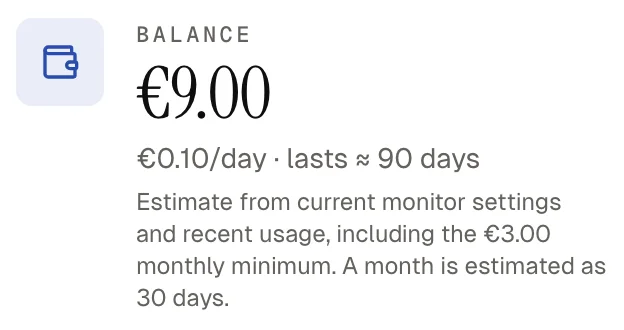
Open Billing. On the starting credit or pay as you go the page leads with your Balance. While the starting credit lasts, the page header shows how much of the Starting credit is left. Transactions starts with the starting credit and lists every top-up, every day of usage and the monthly minimum.
-
Top up the balance
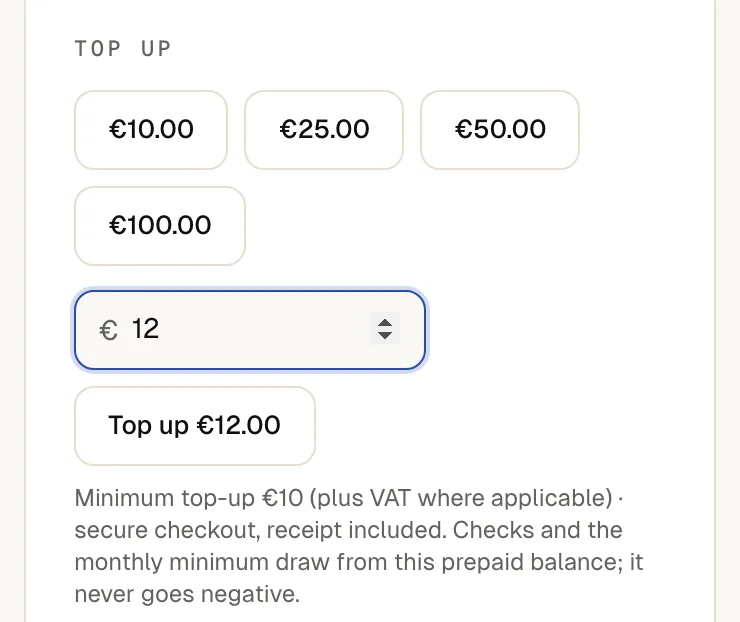
Under Top up choose an amount or enter your own under Other amount. The smallest top-up is €10, plus VAT where it applies; below it the button stays disabled. You pay in a secure checkout and the balance rises.
Switch on Auto-reload to top up on its own when the balance falls below a threshold. Not every payment setup offers it. When yours does not, the page says so.
-
Or choose a plan
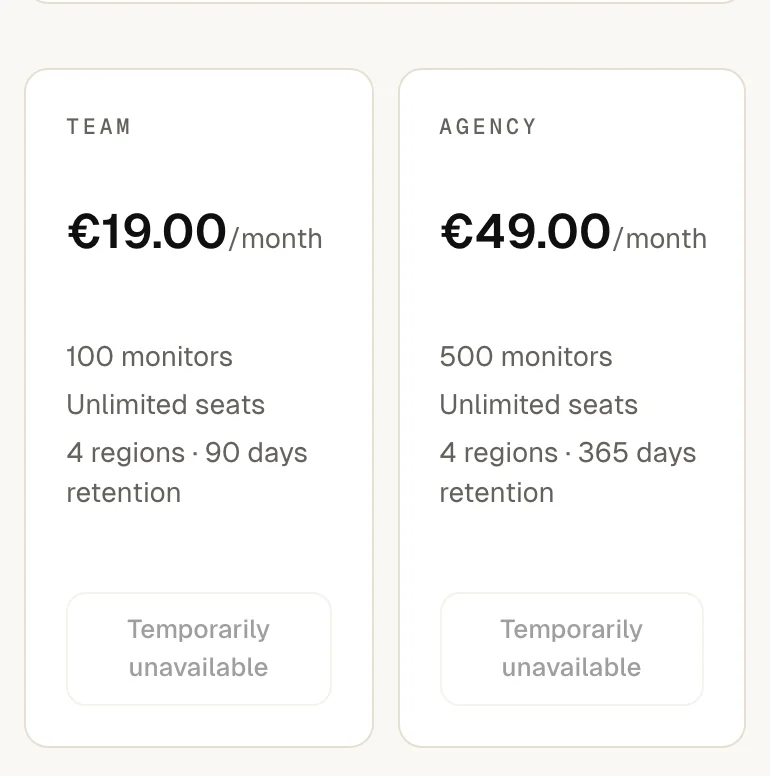
Under Prefer a plan? pick Monthly or Yearly, then select Choose Team or Choose Agency. A yearly term costs ten monthly prices for twelve months. Prices are net; VAT is added at checkout where it applies. Each card shows the price, the monitors, the seats and the regions with their retention. If a checkout is not available, the button reads Temporarily unavailable instead.
-
Set a spend alert
Open Usage and enter an amount under Spend alert, then select Save. up4 sends one email when the month's usage crosses it. An amount of 0 turns the alert off.

-
Change a plan or cancel
Once you have a plan, the billing page shows a subscription card. On it, switching from monthly to yearly and from Team to Agency apply at once, with a preview first. Every other change, such as Switch to Team, applies when the paid period ends.
To cancel, select Open billing portal. The card then shows Cancellation scheduled. After the paid period the Company continues as pay as you go with its balance.
-
Find invoices and receipts
Select Receipts and invoices in the customer portal on the subscription card, or Open receipts for top-ups. Both open Stripe's customer portal. They appear after the first payment: before it, the top-up card only says where receipts will be, and the subscription card is missing until you have a plan.
When the credit runs out
up4 warns the Company owner by email before it happens. On pay as you go the warnings come at about 14, 7, 3 and 1 day of balance left, judged by your recent usage. What follows depends on whether the Company has paid before.
| Situation | What happens |
|---|---|
| Starting credit used up, never paid | Checks pause at once. The email you get says so. A top-up or a plan resumes monitoring. |
| Balance used up after a first payment | Grace mode. For 7 days every monitor keeps running, now every 5 minutes, free of charge. Alerts and status pages stay live. A few actions are narrower; see grace mode limits. |
| After grace mode | Checks pause. A top-up resumes them. Scheduled-job check-ins are ignored while paused. |
| Subscription payment fails | The same grace mode runs. The page shows Payment failed; select Fix payment to update the card. |
A pause never deletes monitors, pages or settings. The balance never goes negative, and up4 does not chase you for payment.
After a top-up the Balance shows the new amount and Transactions lists it as Top-up.
After choosing a plan the subscription card shows Active with the plan and its interval, and Monthly check budget shows how much of the included usage you have used.
If something is off
The checkout does not open.
The page shows an error with Message us, which starts a message with the details filled in. A plan button that says Temporarily unavailable cannot start a checkout right now; try again later.
The page says Payment failed.
Select Fix payment and update the card. Monitoring continues in grace mode meanwhile.
New monitors are blocked on a plan.
The monthly check budget is used up. Running monitors keep their interval. New monitors, shorter intervals and more regions wait for the next month, a larger plan or an add-on.
What up4 does not do here
- up4 charges your card only when you confirm a top-up, a plan or an add-on, or after you switch on auto-reload.
- The monthly minimum is settled when the month closes, prorated by day in the sign-up month. It never takes the balance below zero.
- The check budget of a plan renews with the UTC calendar month. Estimates on the page count a month as 30 days.
- No overage is charged on a plan. When the budget is used up, only new load is blocked.
Was this page helpful?