Watch a scheduled job
Afterwards up4 expects a check-in from your cron job, backup or worker and alerts you when a run stays away or reports a failure.
- Who: Any role except Viewer
- Time: About five minutes
- Cost: €3 per million check-ins
You need access to the place where the job runs. Each accepted check-in is charged.
Steps
-
Name the job
Enter a name under Name, for example
Daily database backup. The name appears in alerts, so use one your team recognizes.
-
Say how often it checks in
Under Expect a check-in every, enter a number and pick seconds, minutes, hours or days. Match the schedule the job really runs on. The shortest interval is 30 seconds.

-
Add a grace period
Under with a grace period of, enter how long up4 waits after the interval before it calls the run missed. A backup that takes 20 to 40 minutes needs a grace period that covers that spread.

-
Create the job
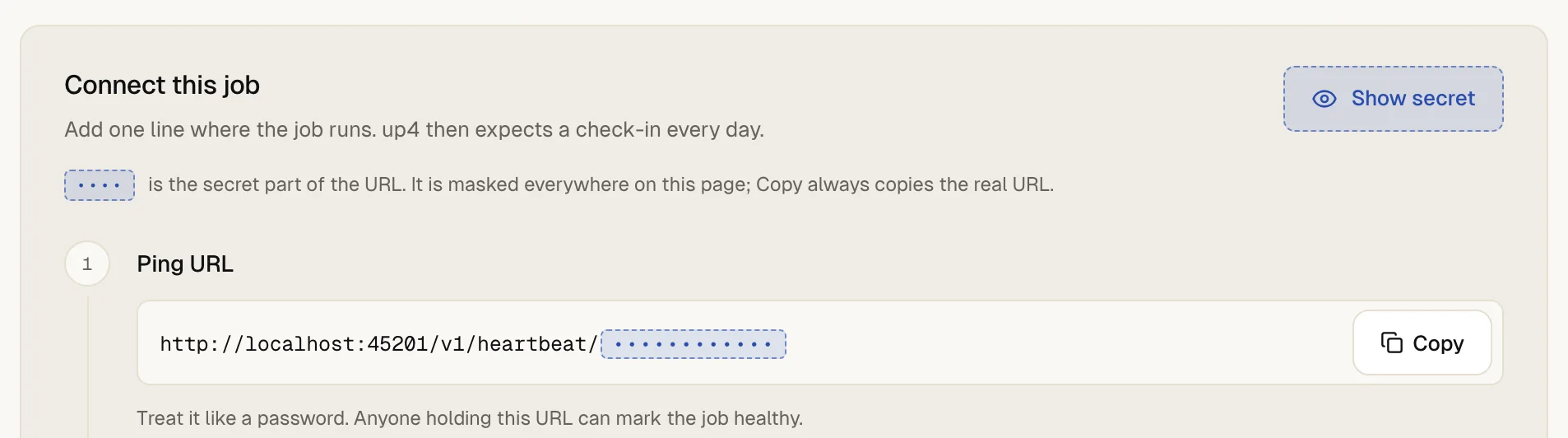
Select Create. up4 opens the job on the Connect this job block with its check-in URL.
-
Copy the check-in URL
Select Copy next to the URL. Part of it is masked on screen; Show secret reveals it, and Copy always copies the whole URL. Treat it like a password: anyone who holds it can mark the job healthy. It stays the same when you save the job again.

-
Call the URL when the job succeeds
Add the call to the end of the job, after the work. This crontab line runs the job and reports success, or the failure signal if the job exits with an error:
0 3 * * * /usr/local/bin/backup.sh \
  && curl -fsS -m 10 --retry 3 https://app.upfour.io/v1/heartbeat/YOUR-SLUG >/dev/null \
  || curl -fsS -m 10 --retry 3 https://app.upfour.io/v1/heartbeat/YOUR-SLUG/fail >/dev/null
Replace the address with the one you copied. Use UTC in crontab times, because local daylight saving changes can skip or repeat runs. The block also has ready snippets under A shell script, GitHub Actions, WordPress / PHP, Node and A Docker container. They all use the same URL:
HEAD,GETandPOSTwork.Adding
/failto the URL reports a failed run at once, with no waiting. A number from 1 to 255 instead offail, such as an exit code, counts as a failure too. The block lists both routes under Advanced endpoints · /fail and exit codes.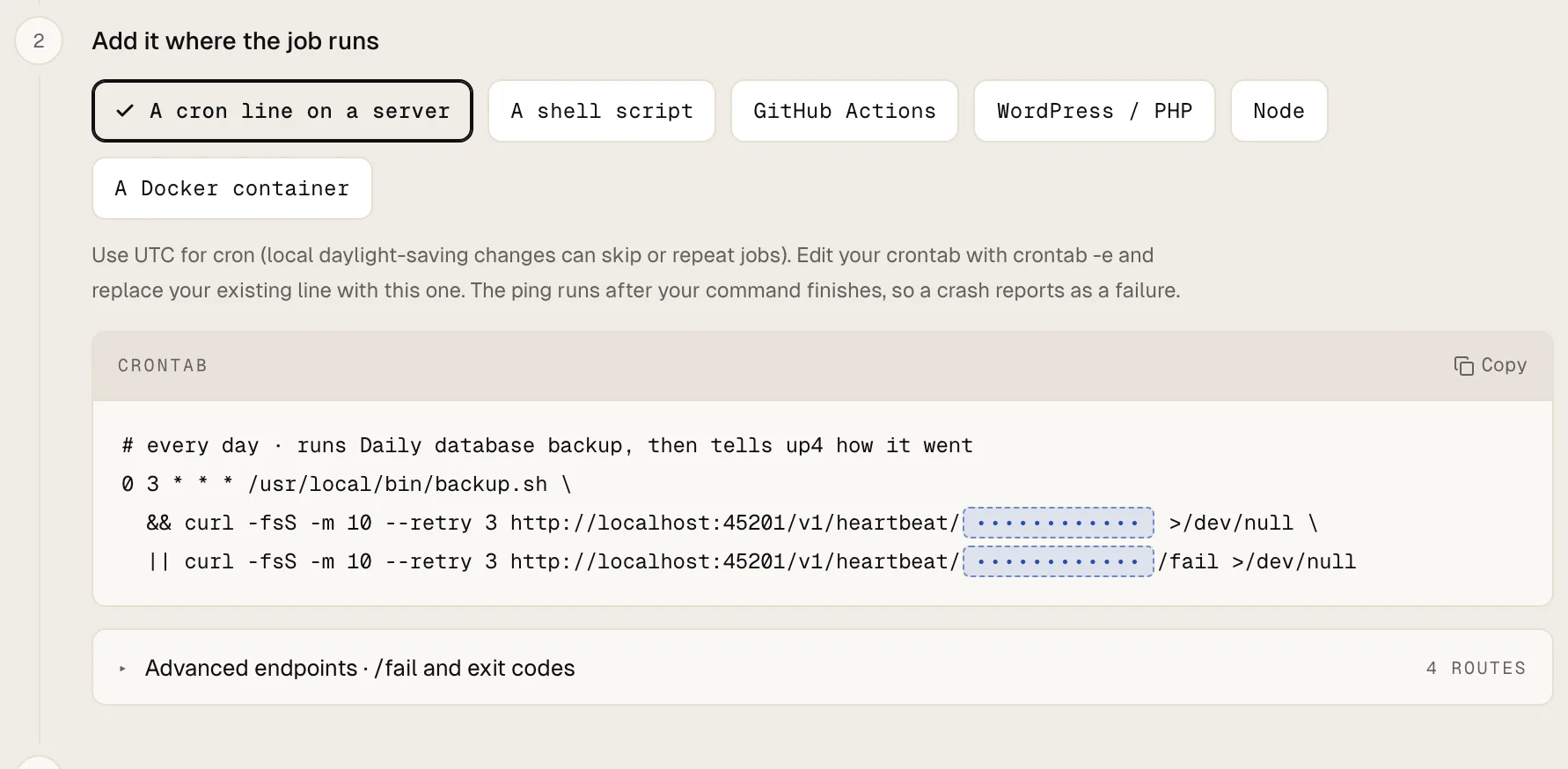
-
Run the job once
The deadline starts with the first check-in, so a job that has never checked in does not alert. Run it by hand or open the URL in a browser tab. The page listens and updates by itself.

The job page shows First check-in received, and in the list the job changes from Waiting to On time.
From then on up4 counts from the last check-in it received.
What happens when a check-in is late
| When | What you see and what up4 does |
|---|---|
| A check-in arrives inside the interval | The job shows On time. Nothing else happens. |
| The interval has passed, the grace period has not | The job shows Late. Nobody is alerted yet. |
| Interval and grace have both passed | The job shows Missed. up4 opens an incident and alerts once. It looks for overdue jobs every 30 seconds. |
| The job reports a failure | The job turns down at once, with an incident and an alert, without waiting for the interval. |
| The next successful check-in arrives | The job is on time again, the incident closes and up4 sends one recovery notice. |
The alert goes to the alert channels of your Company. A job that belongs to a Client also uses that Client's channels. Set up alert channels. To pause a job during planned work, open the Actions menu on its page and select Pause: a paused job never alerts, rejects check-ins and costs nothing. Resume in the same menu turns it back on.
If something is off
The job stays on Waiting.
No check-in has arrived. Run the call by hand and compare your line with the one in the setup block. Read what curl prints: a refused call names the reason.
The job shows Missed although it ran.
The call came too late or not at all. Raise the grace period for runs that vary in length, or check that the job's server can reach the URL.
The job shows Paused and its check-ins are refused.
Someone paused it. Select Resume in the Actions menu on the job page.
What up4 does not do here
- A check-in shows that your job called the URL, not that it did its work correctly. Call it after the work succeeds and report failures with the failure signal.
- Scheduled jobs have no Alert plan, no On-call rotation and no channel choice per job. Every alert goes to the channels described above.
- While your Company's billing is paused, up4 acknowledges check-ins but ignores them, and no job counts as late. In grace mode a shared daily allowance of stored check-ins applies: further check-ins only keep the job alive.
- The job page keeps a raw log of check-ins with time and source address. How long up4 keeps it is described in data and privacy.
/v1/heartbeats The check-in itself needs no key: send HEAD, GET or POST to /v1/heartbeat/{slug}, with /fail or an exit code from 1 to 255 appended for a failure. The create response contains the full URL. The scheduled jobs reference and the backup recipe cover pause, resume, the check-in log and the missed and recovered webhooks.
| In the app | API field |
|---|---|
| Name | name |
| Expect a check-in every · Whole seconds; the form turns seconds, minutes, hours or days into seconds. | expected_interval_seconds |
| with a grace period of · Whole seconds, zero or more. | grace_period_seconds |
| Group | heartbeat_group_id |
| Client | client_id |
| Metadata | metadata |
Was this page helpful?