Write a playbook
Afterwards every incident on your monitor shows a checklist of fix steps, so nobody has to remember how you handled it last time.
- Who: Any role except Viewer
- Time: About ten minutes
- What you need: At least one monitor
You link the playbook to the monitor.
Steps
-
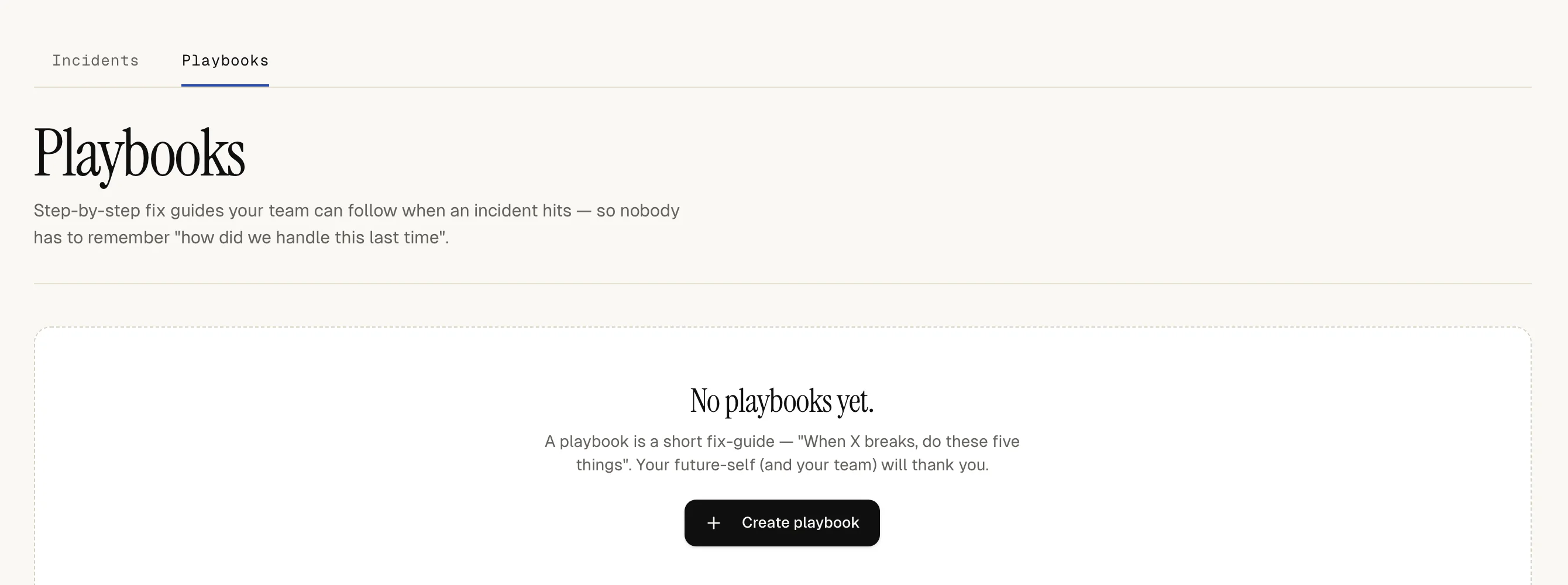
Start a new playbook
Open Incidents, select Playbooks at the top of the list, then New playbook. Until you have written one, the same place offers Create playbook.
-
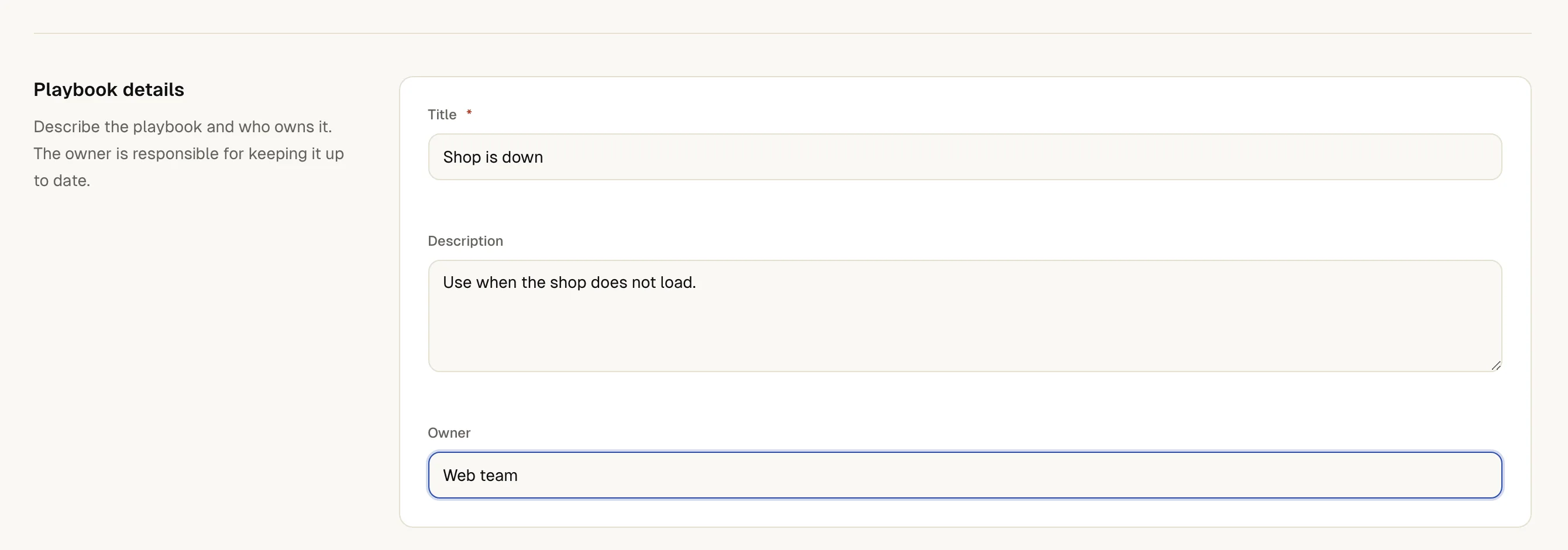
Name it and say who owns it
Enter a Title, for example the failure it covers. Under Description say when to use it. The first lines show on the incident.
Owner is free text, for example a team name. It tells people who keeps the playbook up to date.
-
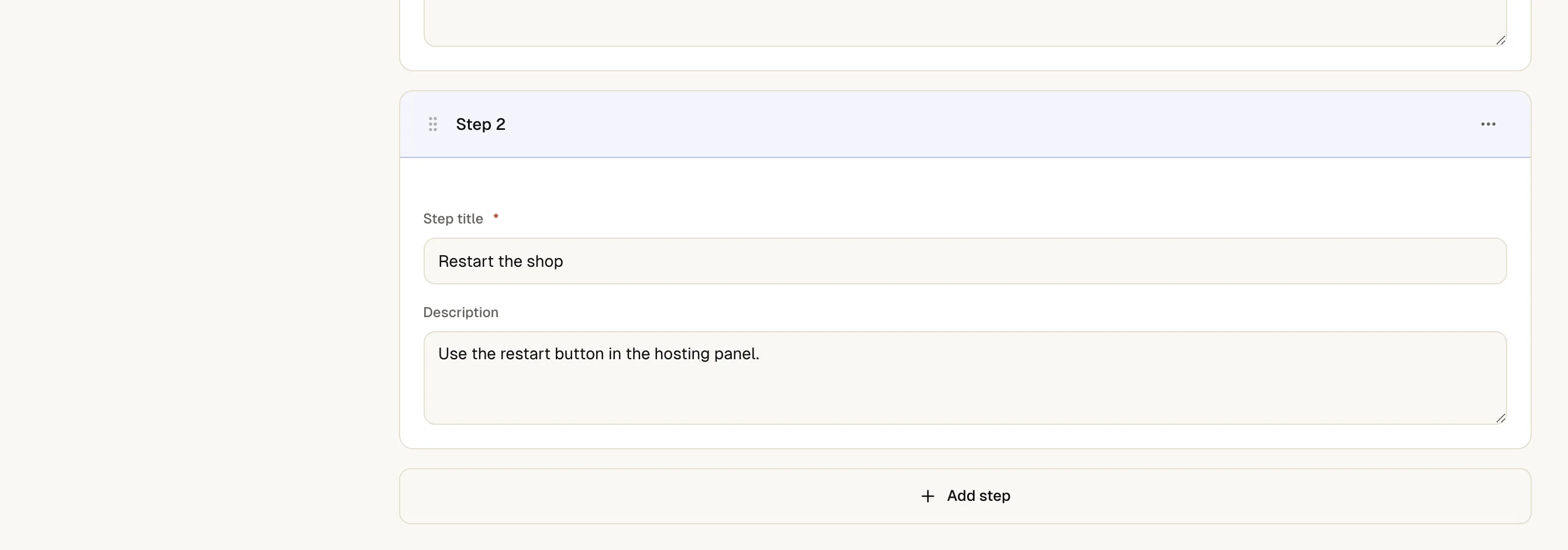
Add the steps
Select Add step. Give each step a Step title and, if useful, detailed instructions. Write steps a tired person can follow at 4 a.m.: one action each, in order.
To reorder, open the menu of a step (Actions for step 2) and choose Move up or Move down. At least one step needs a title.
-
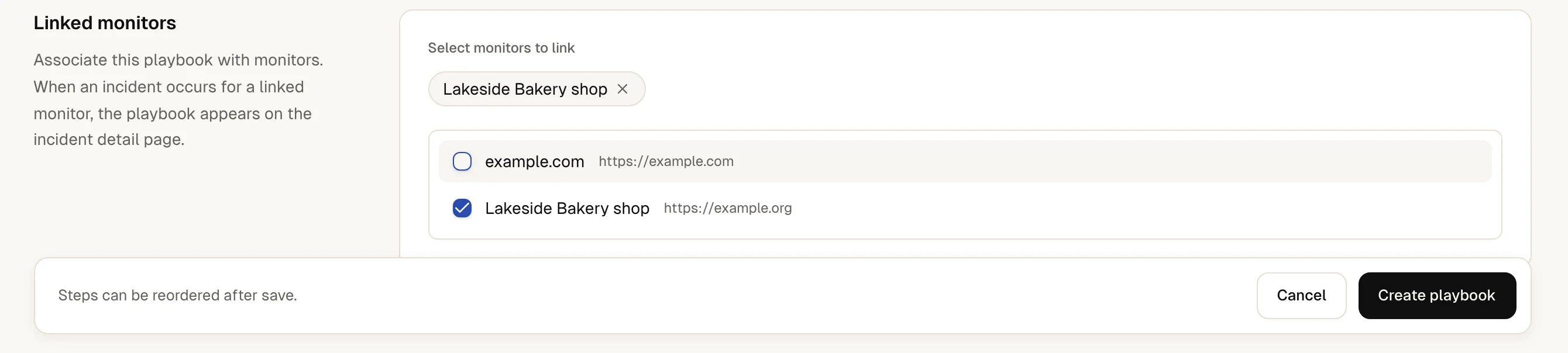
Link the monitors
Under Linked monitors, tick the monitors this playbook belongs to. With more than eight monitors a search field helps you find them. When an incident opens on a linked monitor, the checklist appears on it.
-
Create the playbook
Select Create playbook. To change it later, open it and select Edit, then Save changes.

The playbook appears in the list with its number of steps. On the next incident of a linked monitor, the sidebar shows Playbook checklist with every step, its instructions and a progress bar.
Anyone handling the incident can tick a step. up4 shows who ticked it and when, and adds the tick to the incident's timeline. The playbook page itself stays an unticked template.
If something is off
No checklist on the incident.
The incident must belong to a monitor that is linked to a playbook. Incidents without a monitor and scheduled jobs' incidents have none. See handle an incident.
A monitor is missing from the list.
With clients turned on, a playbook and its monitors must belong to the same client, or all be company-level.
The wrong playbook shows.
When several playbooks are linked to one monitor, the incident shows only the first, sorted by title. Link each monitor to one playbook.
What up4 does not do here
- Playbooks link to monitors only, not to alert plans or scheduled jobs.
- Steps are plain text. They do not run commands, and links in them are not clickable.
- Saving a playbook replaces its steps, and that clears the ticks on every incident that used it. Edit a playbook when no incident is open.
- Ticks belong to the incident, not the playbook. Everyone on the incident sees the same ticks.
- The checklist is for your team. It is not shown in the client portal.
/v1/runbooks Ticking a step on an incident is a separate request on the playbook. Updating a playbook sends all steps again.
| In the app | API field |
|---|---|
| Title | title |
| Description | description |
| Owner | owner |
| Steps · a list of steps, each with a title and a description | steps |
| Linked monitors | monitor_ids |
Was this page helpful?