Add a client
Afterwards one of your customers has its own space in up4: monitors, scheduled jobs and status pages filed under its name, kept apart from every other client.
- Who: Company Owner or Admin
- Time: About five minutes
You need a customer you monitor on behalf of. Other roles cannot turn on agency mode or create clients. Nothing changes for existing monitors until you assign them to a client.
up4 organizes a Company in three levels. The Company is your account. A Team is a group of your own people and decides who gets access. A Client is a customer's data: the things you watch for them. Teams are about access, clients are about data. Team and roles covers the first.
Steps
-
Turn on agency mode
Open Company, find Agency mode and switch on Enable clients. Enable agency mode on the Clients page and in the view switcher does the same.
The switch adds the client switcher and the Clients and Teams pages. Switching it off hides client data and the switcher. Clients and their monitors are kept, not deleted.

-
Add the client
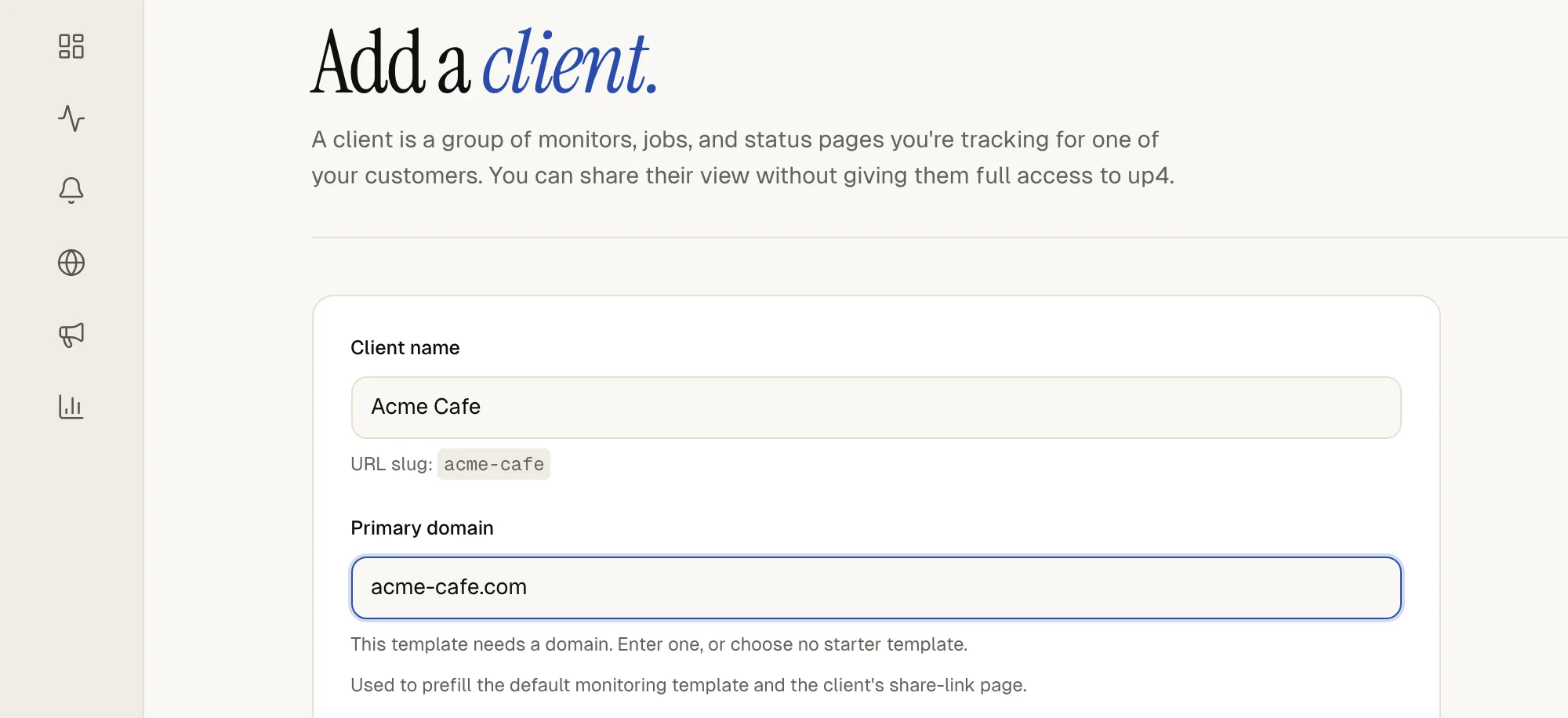
Select Add client. Enter a Client name. Add the Primary domain if you know it. A starter template can use it to prefill the first monitor.
Optional: a logo (PNG, JPEG or SVG, up to 1 MiB), and the Communication language for reports, invitations and alerts sent for this client. Without a choice, the Company default applies.
-
Start from a template or empty
Under Starter template pick a saved template, or No template — start empty. up4 adds a template named Default (one monitor and one status page) and preselects it. A template creates the monitors, alert plans and status pages it describes, with the client's domain filled in.
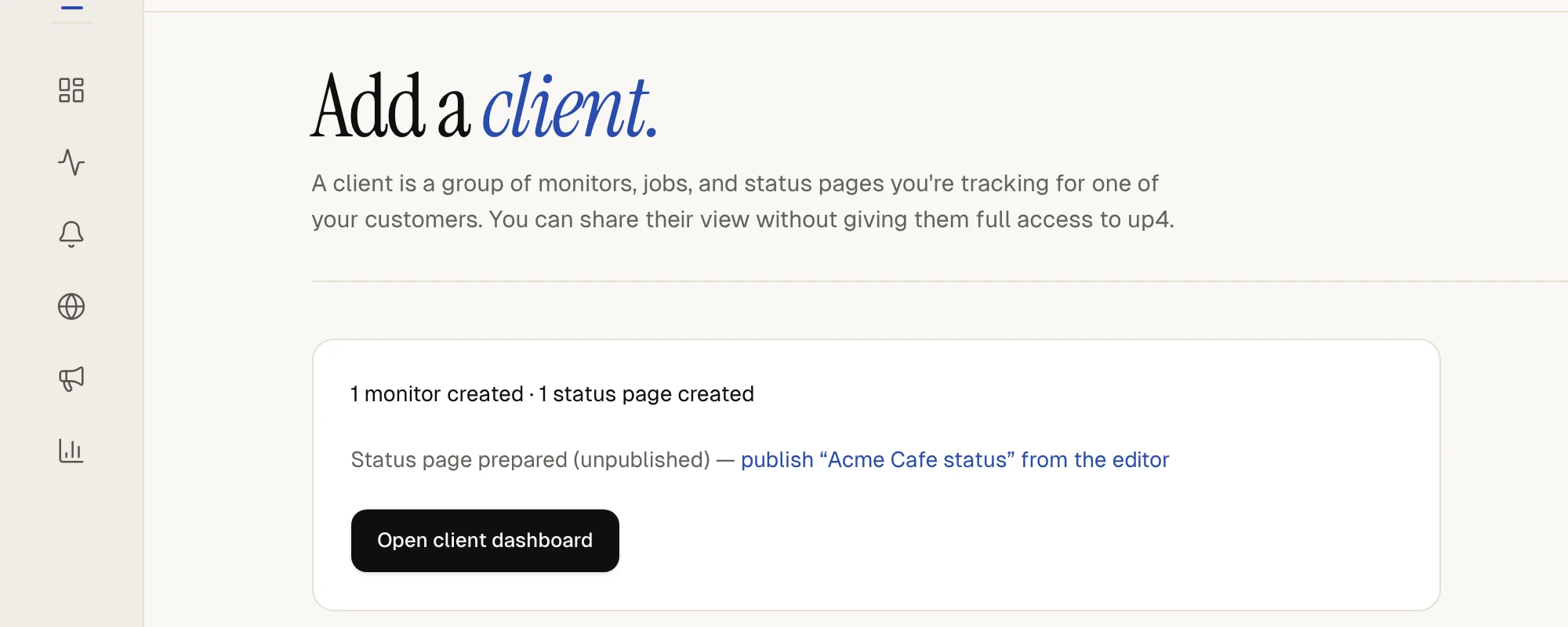
Status pages from a template start unpublished. The result screen lists them with a link to the editor. To write your own template, open Templates next to Clients and select New.

-
Decide on a client login
Leave Let this client sign in off if a read-only link is enough for the client. Turn it on to invite their staff into a portal that shows only this client. Give a client their own login explains both.
Select Create client. up4 switches your view to the new client.
-
File things under the client
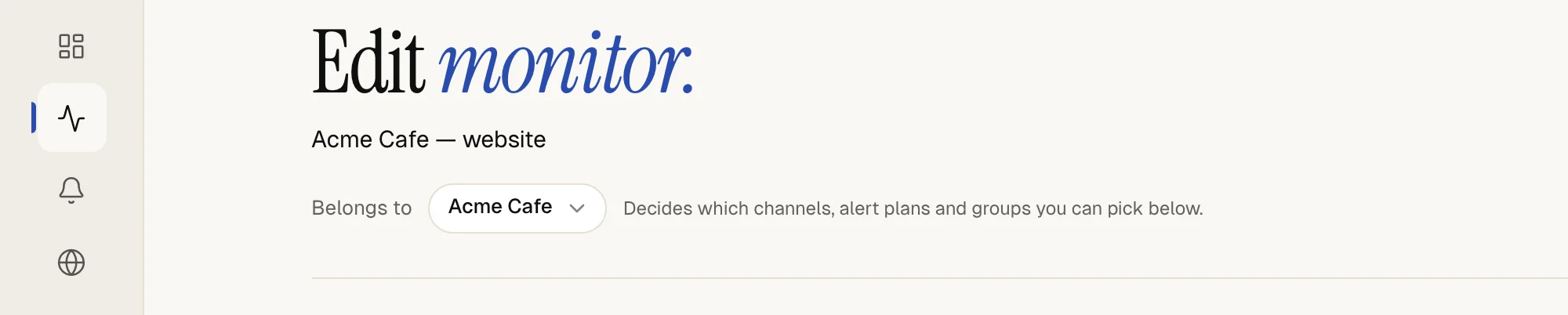
While a client is selected in the switcher, new monitors you create belong to that client. For something that already exists, change Belongs to on the monitor, or select several monitors, choose Change selected…, and under Action pick Move to client.
Scheduled jobs, alert plans, on-call rotations, playbooks and status pages show Assign to client in their forms. Alert channels show Belongs to client (optional) and report schedules Scope to client (optional). An incident appears under the client of its monitor.
-
Switch between clients
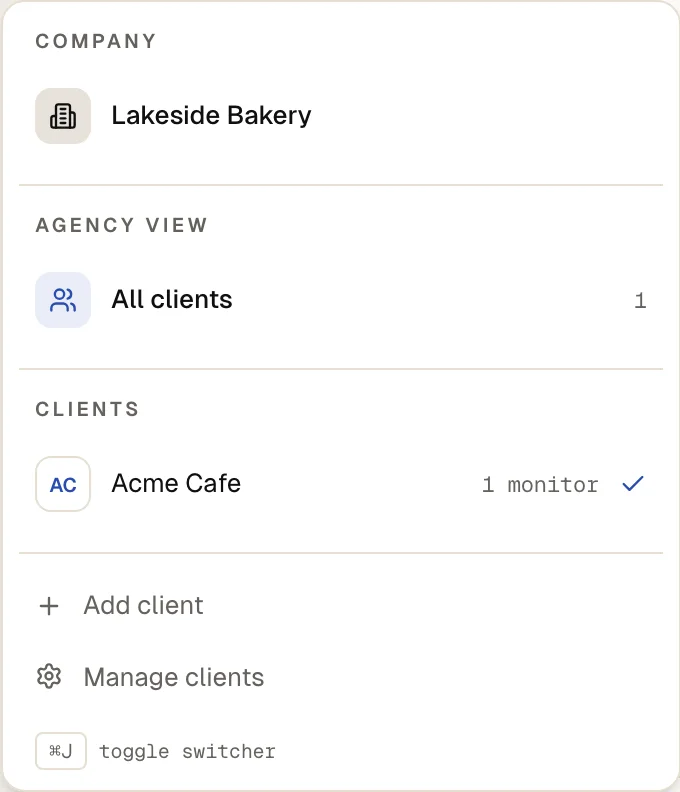
The switcher at the top of the left menu has three views. Under Company your Company's name shows what belongs to no client. A client's name shows that client only. All clients adds everything together, for a Monday sweep across every customer.
Lists and the dashboard follow the view you pick. The shortcut ⌘J opens the switcher.
-
Archive a client when the contract ends
Open the client under Clients and select Archive client. The client disappears from the switcher and the lists. Its portal members are locked out. Monitors, history and settings stay.
Pause their monitors and scheduled jobs is ticked when the dialog opens. Leave it ticked to stop the checks, because running checks keep costing money. To bring a client back, choose Show archived clients under the list of clients and then Unarchive. Unarchiving does not resume paused checks.

The client appears in the switcher and in the list under Clients, with its monitor count and open incidents. Select Open client dashboard to see a dashboard that contains only this client.
To see what each client costs, open Usage. The section Spend by client splits the usage by client.
If something is off
There is no client switcher.
Agency mode is off, or your role is not allowed to turn it on. Ask a Company Owner or Admin, or start at step 1.
A template needs a domain.
If a template uses the client's domain, enter one such as acme.example or pick No template — start empty.
A monitor is missing from the client's view.
It may belong to no client or to another one. Switch to All clients and move it.
What up4 does not do here
- Applying a template only adds. It never changes or removes what a client already has, so applying it twice gives two copies. up4 applies a template when you create a client; it does not apply one to an existing client.
- Each resource belongs to one client or to none. up4 has no sub-clients and no shared monitors.
- Archiving a client does not stop its checks unless you pause them.
- Show archived clients appears only while at least one active client is left. After you archive your last client, add a new one to see the archived ones again.
- A client's data is kept apart on the server, not just hidden in the screen. People in a Team see the clients assigned to that Team, plus what belongs to no client.
/v1/clients | In the app | API field |
|---|---|
| Client name | name |
| Primary domain | domain |
| Starter template | template_id |
| Communication language | language |
| Let this client sign in | allow_login |
Was this page helpful?