Team and roles
Afterwards your colleagues can sign in with the access you chose for each of them, and you know what each role may and may not do.
- Who: Company Owner or Admin
- Time: About two minutes per person
You need the email address of the person you invite. You can invite members of your own staff; for a customer’s staff, give the client a login.
Steps
-
Invite the person
Select Invite member. Enter the Email address of the person. If that address already belongs to a member of your Company, the form changes to Add to team instead.

-
Choose a role
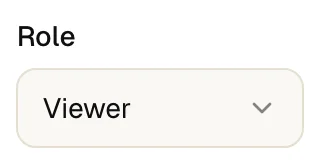
Under Role choose Member, Admin or Viewer. The table below shows what each allows. Invitations never create an Owner. If your Company uses Teams, pick the Team too.
-
Send the invitation
Select Send invite. The invitation waits under Pending invites with its expiry date. It stays valid for seven days. Use Resend or Revoke there. up4 accepts a resend two minutes after the last mail of that invitation and refuses an earlier one.

-
Change a role later
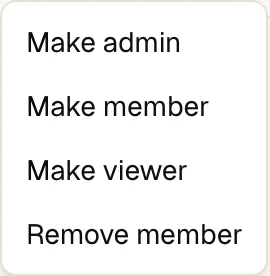
Open the menu on the member's row and choose Make admin, Make member or Make viewer. The change applies at once. The list offers no menu for your own row or for the Owner.
-
Remove a member
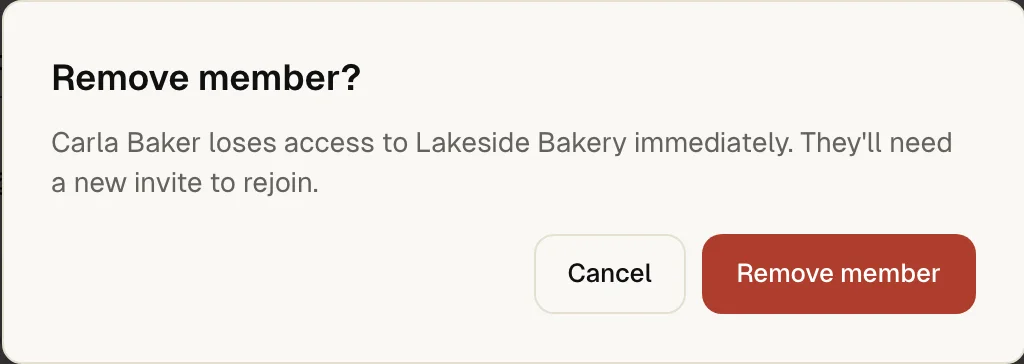
Open the same menu and choose Remove member, then confirm. The person loses access immediately and needs a new invitation to come back.
The person appears under Members with the role you chose, once they have accepted the invitation. Until then they sit under Pending invites.
What each role can do
There are four roles in a Company. The Owner is the person who created it and is the only one who can delete it. An Owner cannot be removed or demoted from the member list.
| Action | Owner | Admin | Member | Viewer |
|---|---|---|---|---|
| See monitors, scheduled jobs, incidents, status pages and reports | Yes | Yes | Yes | Yes |
| Create and change monitors, scheduled jobs, alert plans, playbooks, status pages and report schedules; work on incidents | Yes | Yes | Yes | No |
| Invite and remove members, change roles | Yes | Yes | No | No |
| Create Teams and assign clients to them | Yes | Yes | No | No |
| Turn on agency mode, create and archive clients, manage client portals | Yes | Yes | No | No |
| Company settings, report branding, custom domains for status pages | Yes | Yes | No | No |
| Two-factor requirement, single sign-on, audit log | Yes | Yes | No | No |
| Billing: top up credit, change plan, buy extensions | Yes | Yes | No | No |
| Delete the Company | Yes | No | No | No |
Roles & permissions in the app shows the same four roles with the number of people in each.
Limit access to clients with Teams
A Team is a group of your own people. It matters once you work for several customers: after you turn on clients, you assign clients to a Team. Its members then see only the monitors, incidents and status pages of those clients, plus everything that belongs to no client. Owners, Admins and Team admins see every client.
- Open Members & teams, then Teams, and select Create team. Enter a Team name.
- On the Team's page, add people with Add member and choose their Team role. A Team admin manages that Team's membership.
- Open the Team's Clients tab. Under Assigned clients the clients the Team handles are listed. Assign another client offers one button for every client that is not assigned yet.
A Team adds no permissions of its own. What a person may do comes from the Company role; the Team decides which clients they see. Without agency mode the Teams page is hidden.
Require two-factor sign-in
Open Company, then Security, and switch on Require two-factor authentication. Every member then needs an authenticator app before signing in.
Before you confirm, up4 shows how many members have no second factor yet. They stay signed in and see a notice asking them to set one up. Until they do, their next sign-in is refused. Members who sign in by email link need a password first.
On the same page, a verified domain makes everyone who signs up with an email address on it join your Company automatically.
Sign in with Google or GitHub
Open Single sign-on. Each provider has its own switch, Client ID, Client secret and Callback URL, which you register with Google or GitHub. Members then sign in from the login page with their work email or your Company slug.
up4 supports Google and GitHub for each Company. SAML is not offered.
If something is off
The invitation does not arrive.
Check the spam folder, then use Resend (two minutes after the last mail at the earliest). An invitation that expired needs a new one.
A person cannot do something they should.
Compare their role with the table above. Viewers can read but not change anything.
A member sees too little.
If your Company uses clients, check which clients their Team has under Assigned clients.
What up4 does not do here
- A Company sends 25 invitations a day on its starting credit and 100 a day after the first top-up or with a subscription. Resends count as well.
- Roles apply to the whole Company. There are no per-Team permission switches and no custom roles.
- A person belongs to one Company. An account that belongs to another Company cannot accept your invitation.
- Two-factor sign-in is a Company-wide setting. up4 does not enforce it per Team or per role.
- Roles in the table are for people who sign in. API keys have their own scopes, described in the developer docs.
/v1/invites | In the app | API field |
|---|---|
| Email address | email |
| Role | role |
| Team | team_id |
Was this page helpful?