Receive alerts
Afterwards the right place hears about it when a monitor goes down, and again when it is back.
- Who: Any role except Viewer
- Time: About five minutes
- What you need: An account with the service
That is the service you want to alert, for example a Slack channel to post into. up4 charges nothing per channel or message.
Steps
-
Add a channel
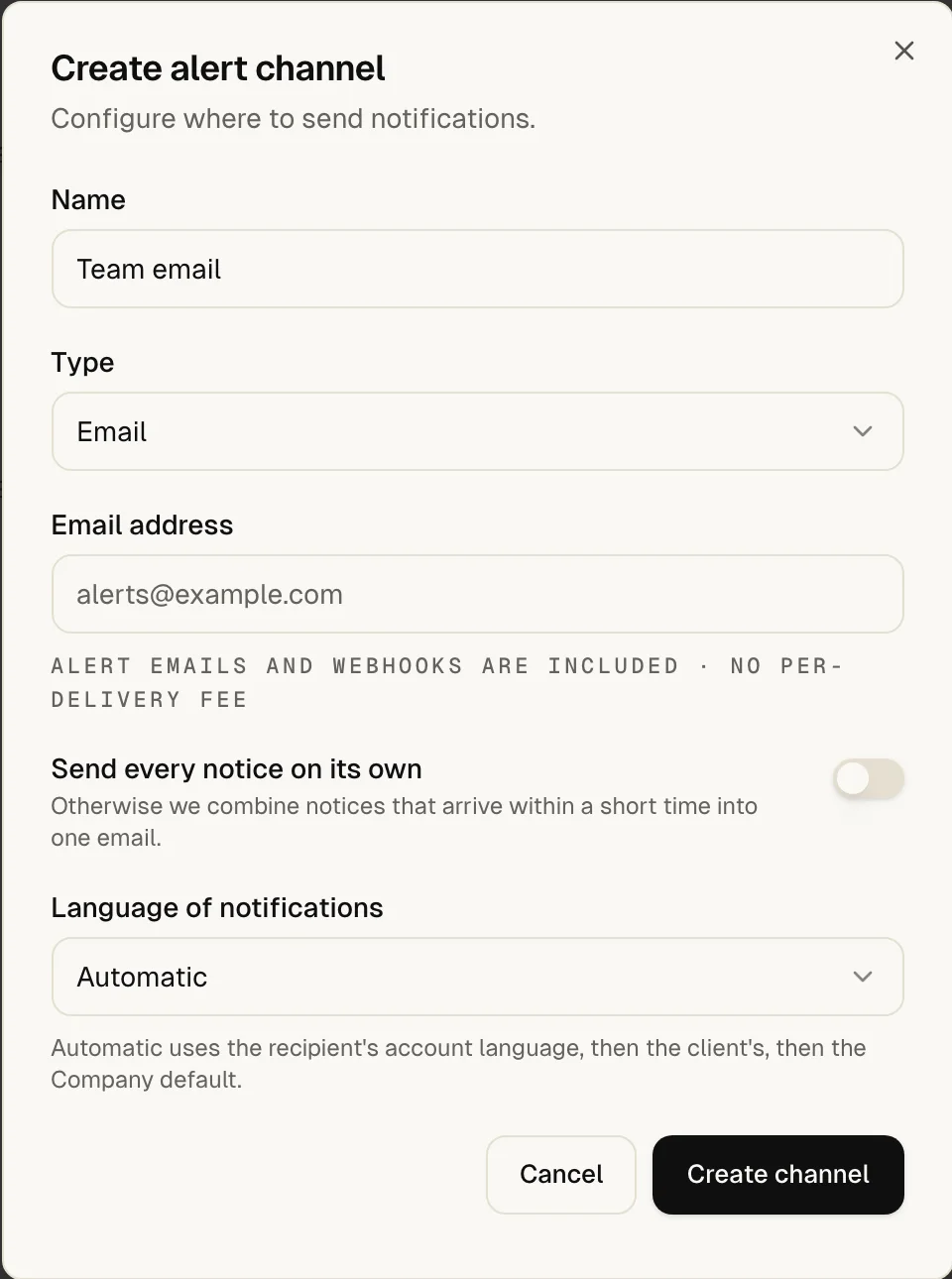
Select + Add channel. In Create alert channel, give the channel a Name you will recognize later and pick a Type.
In agency mode you can also set Belongs to client (optional). The channel then appears only when you work in that client's scope, so alerts for that client reach the client's own contact.
-
Enter what the service needs
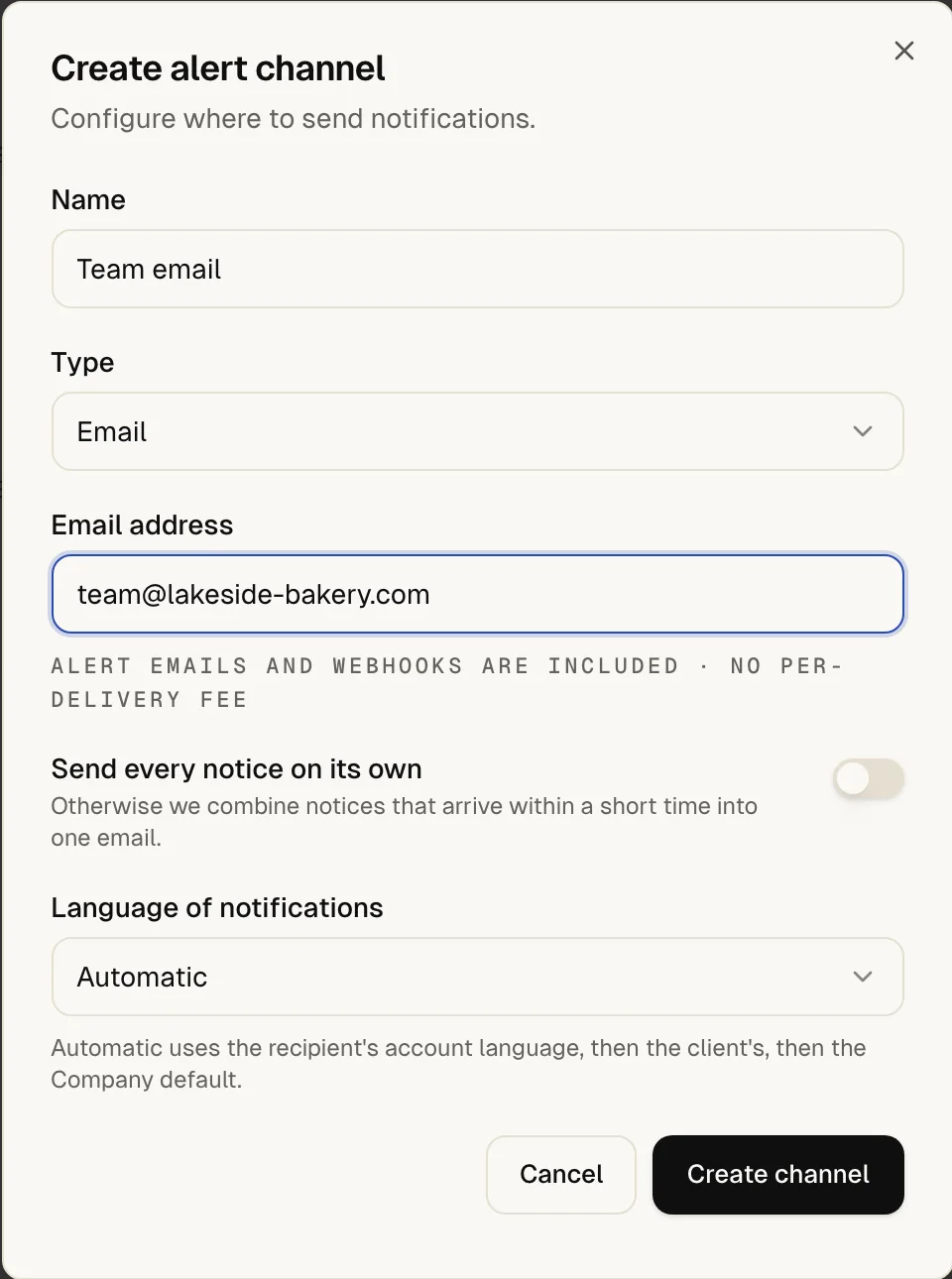
Each type asks for different details. Slack, Teams, Discord, Zapier and Grafana give you a URL; Telegram, PagerDuty, Datadog, New Relic, Jira, ntfy and Pushover give you keys or tokens. Most forms link to the page where you find them.
Channel type You enter Email Email address SMS A Twilio account of your own: Twilio Account SID, Twilio Auth Token, Sender number (From) and Recipient number (To) Phone call The same Twilio details, with Caller number (From) instead of the sender number Webhook Webhook URL, optionally a Signing secret Slack Slack Webhook URL, optionally a Channel override Telegram Bot Token and Chat ID Microsoft Teams Teams Webhook URL Discord Discord Webhook URL PagerDuty Routing Key Zapier Zapier Webhook URL Datadog API Key and Region New Relic License Key, Account ID and Region Jira Jira Base URL, Email, API Token, Project Key and Issue Type Grafana Grafana Webhook URL ntfy ntfy server and Topic, optionally an Access token Pushover Application API token and User or group key Select Create channel. up4 then asks Which monitors should alert Team email? Tick monitors there, or select Skip and choose them later. You can edit a channel later; secret fields stay hidden and keep their value while you leave them empty.
-
Send a test
On the card of the new channel select Send test. The message is labeled as a test, so nobody mistakes it for an outage.
Once a channel has delivered a message, its card shows delivering and Send test moves into the row menu of the card, the three dots at its top right.

-
Choose who gets alerted for a monitor
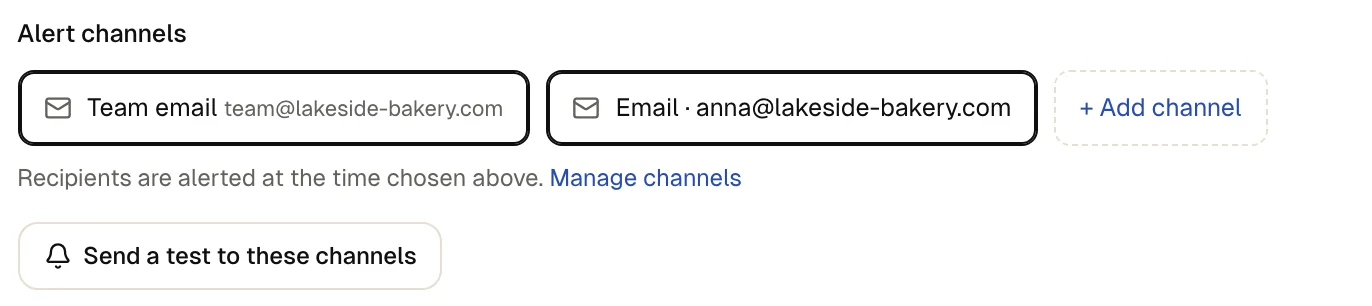
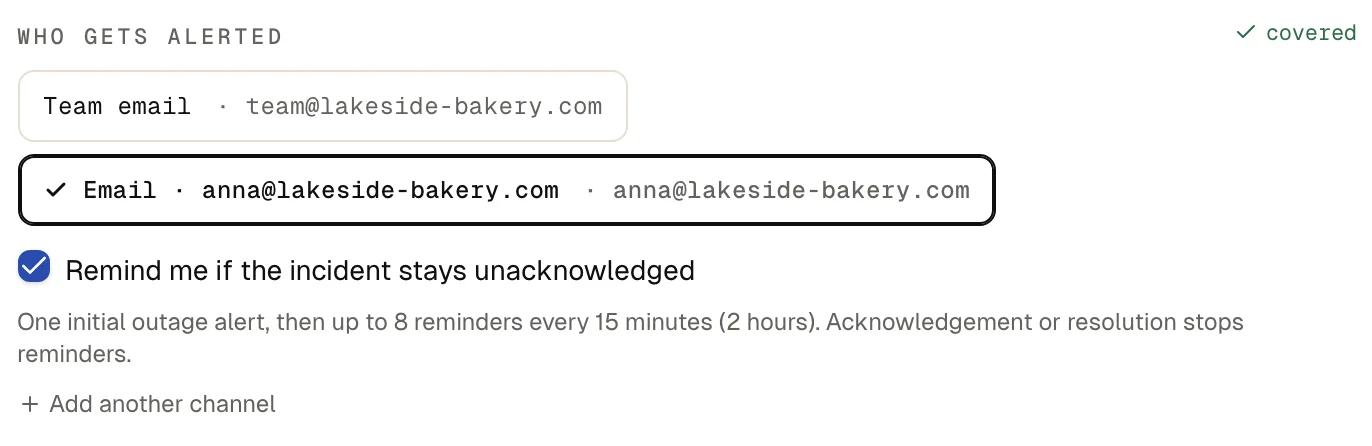
Open the monitor's edit page: select the monitor, then Edit. In the card Who hears about it select one or more channels under Alert channels. While you create a monitor the same question reads Who gets alerted, and the marker covered appears as soon as somebody is selected.
Channels you select here are direct recipients: each gets one alert when the outage is confirmed. To add reminders and further people in steps, choose an alert plan under Alert plan on the edit page. The plan works on top of the direct recipients.
-
Choose when to alert
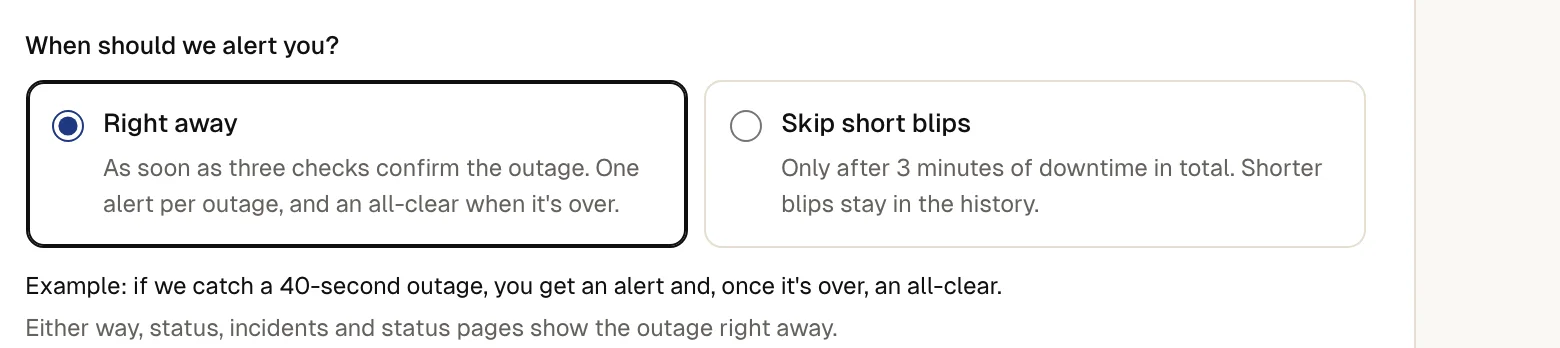
The question When should we alert you? has two answers:
- Right away: As soon as three checks confirm the outage. One alert per outage, and an all-clear when it's over.
- Skip short blips: Only after 3 minutes of downtime in total. Shorter blips stay in the history.
Either way, status, incidents and status pages show the outage right away. The rules behind both are on When you get alerted. Then select Save changes to keep the channels and this setting.
-
Optionally turn on reminders
Open the form for a new monitor. When no alert plan is selected and one of the selected channels delivers to your own email address, the form offers Also send reminders while the incident is unacknowledged. With it on, the form says: After the outage alert, up to 8 reminders every 15 minutes (2 hours). They stop once someone acknowledges the incident or it is resolved.
The edit page of an existing monitor does not offer this; choose an alert plan there. When you create the monitor with reminders on, up4 creates an alert plan called Just me for it. You can edit it with the other plans.
The test arrives in the service you chose. The toast reads Test sent to “Team email”. It is clearly labelled as a test. For a phone call it reads Test call requested. Receipt is confirmed only after pressing 1..
On the form for a new monitor the marker covered shows. On the edit page of a monitor, Send a test to these channels runs the same test for the channels saved for it. On the monitor page the command palette offers Send test alert, and so does the banner right after you create the monitor.
After a real outage the same channels get an all-clear when it is over. A recovery notice goes only to a channel that heard about the outage.
If something is off
The test fails with The provider could not deliver the test..
Check the URL, token or key you entered against the service's own page. Webhook URLs must use HTTPS.
No test email arrives.
Look in your spam folder. Email notices that arrive close together are combined into one message unless you turn on Send every notice on its own for that channel.
The form warns that nobody is alerted.
Nobody is alerted when this monitor goes down. Pick a channel or an alert plan. Select a channel under Who gets alerted. More in the symptom index.
What up4 does not do here
- SMS and Phone call run through your own Twilio account. Twilio bills messages, calls and numbers to you; up4 never resells them. Requires a voice-capable Twilio sender number and an international recipient number. One call per monitor incident and alert-plan step, up to 55 seconds. Add a later step for another attempt. Scheduled jobs, recovery messages and repeat cycles of the same step do not trigger calls.
- Pressing 1 during a call acknowledges the incident and stops the alert plan.
- Webhook, Zapier, PagerDuty, Datadog, New Relic, Grafana and Jira alerts also carry the monitor's Metadata, so the receiving system can route by it. Chat, email, SMS and push alerts stay as they are.
- A webhook channel signs a request only when you set a signing secret, with an HMAC-SHA256 in
X-Up4-Signature: sha256=<hex>over the raw body. Subscriptions created through the API are always signed in a different format, described in the webhooks guide. - A slowdown warning is a separate, optional message. It is not sent to Phone call, SMS, PagerDuty, Jira or Grafana channels.
- Chat, email, SMS and push channels have a language setting. Automatic uses the recipient's account language, then the client's, then the Company default.
- Paused monitors and monitors inside a maintenance window do not alert. A confirmed outage needs 3 matching results first.
- A missed check-in of a scheduled job goes to the channels that fit the job's Company, client or team. Scheduled jobs do not use alert plans and never place a call.
- up4 does not promise a delivery time. Arrival depends on the channel and the service behind it.
/v1/notification_channels | In the app | API field |
|---|---|
| Name | name |
| Type · email, sms, voice, webhook, slack, telegram, msteams, discord, pagerduty, zapier, datadog, newrelic, jira, grafana, ntfy or pushover | type |
| Email address | config.email |
| Webhook URL | config.url |
| Signing secret | config.secret |
| Slack Webhook URL · Slack, Microsoft Teams, Discord, Zapier and Grafana use this key for their URL | config.webhook_url |
| Bot Token | config.bot_token |
| Chat ID | config.chat_id |
| Routing Key | config.routing_key |
| Send every notice on its own | config.send_individually |
Was this page helpful?