Give a client their own login
Afterwards a client's staff can open a read-only portal with their own monitors, and nothing else of yours. The second part of this page is written for the client and can be forwarded.
- Who: Company Owner or Admin
- Time: About three minutes
- What you need: A client
For people who only need to look now and then, a share link works without any login.
For the agency
Steps
-
Allow portal sign-in
Open the client and find Client access. Switch on Allow portal sign-in. You can also tick Let this client sign in when you create the client.
The switch is also the off button. Turning it off locks out every portal member of this client at once.

-
Choose what the client sees
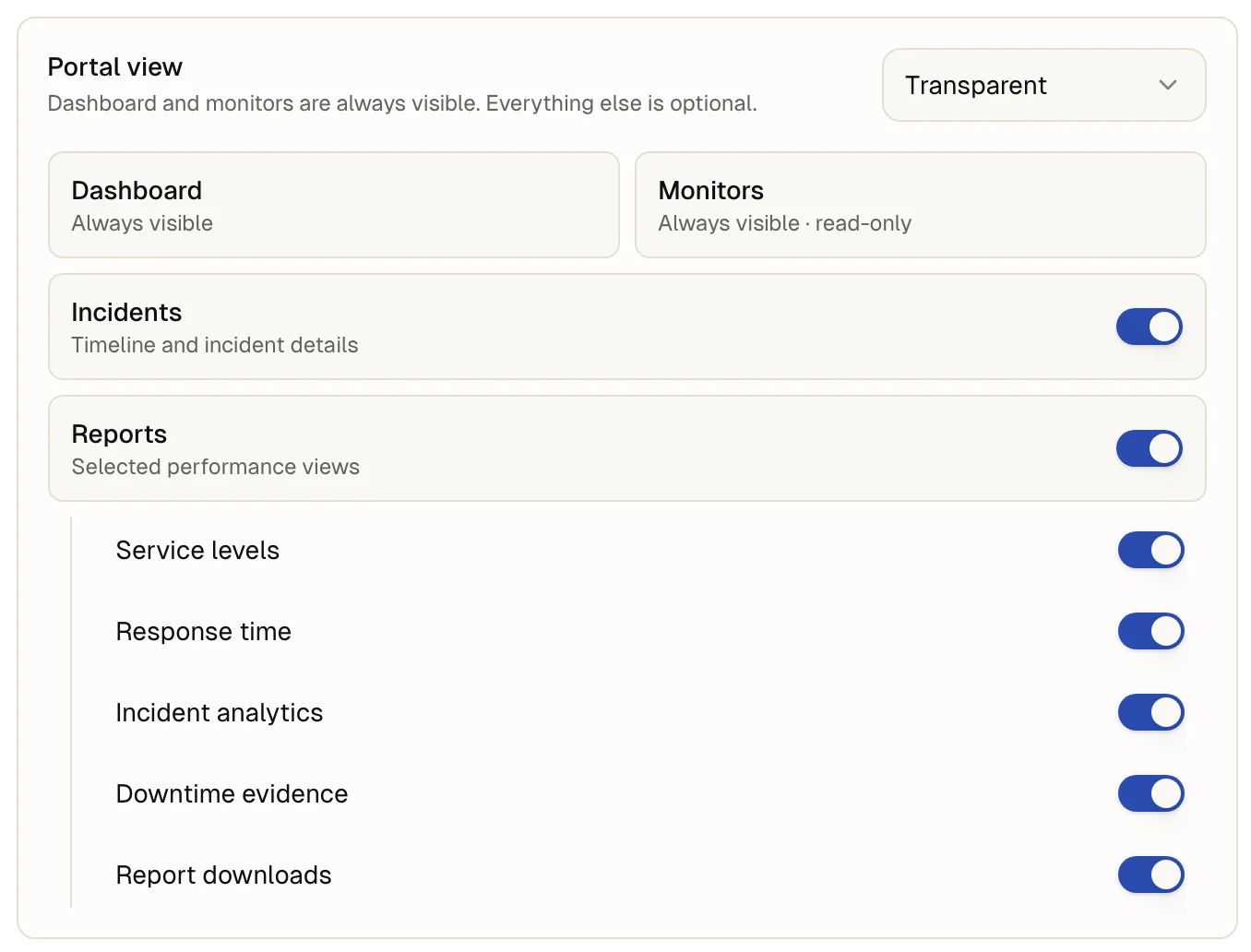
Under Portal view pick a preset. The dashboard and the monitors are always visible, read-only. Select Save changes at the bottom of the page to keep the choice; portal sign-in itself is saved the moment you switch it.
- Compact: reports with Service levels and Response time. No incidents, no downloads.
- Transparent: incidents and every report, including downloads.
- Custom: switch Incidents and Reports on or off, and under reports choose Service levels, Response time, Incident analytics, Downtime evidence and Report downloads one by one.
-
Send the personal access
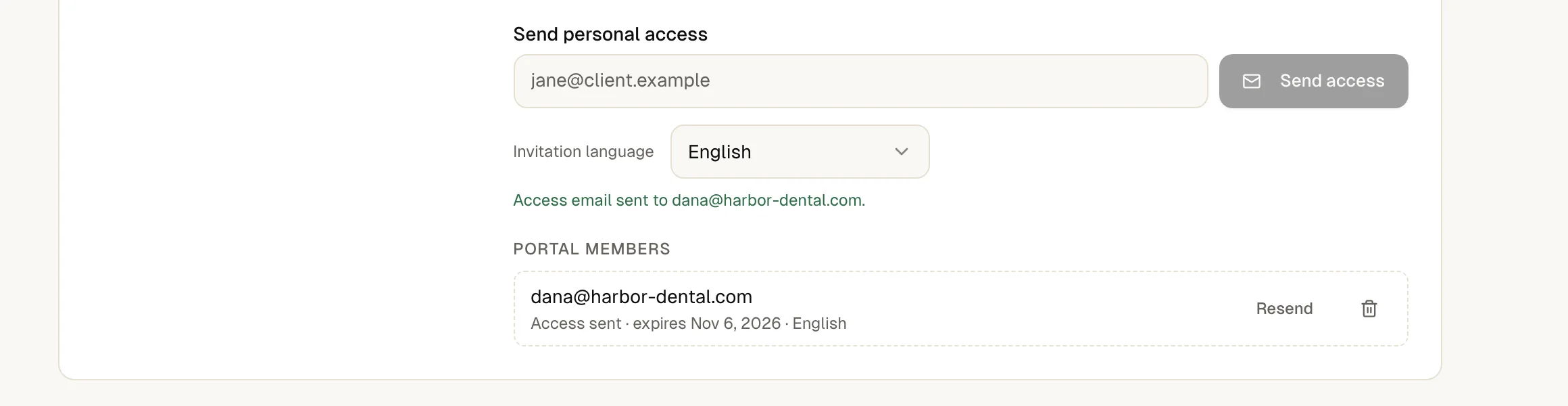
Under Send personal access enter the contact's email address and select Send access. Pick the Invitation language for the email.
The email holds a personal link. It stays valid for seven days. A pending access shows its expiry date, with Resend next to it.
-
Check who has access
People who opened their link appear under Portal members; pending ones show Access sent · expires date. Remove a person there and their portal access ends. Their account stays, and a new invitation brings them back.

-
Or send a link without a login
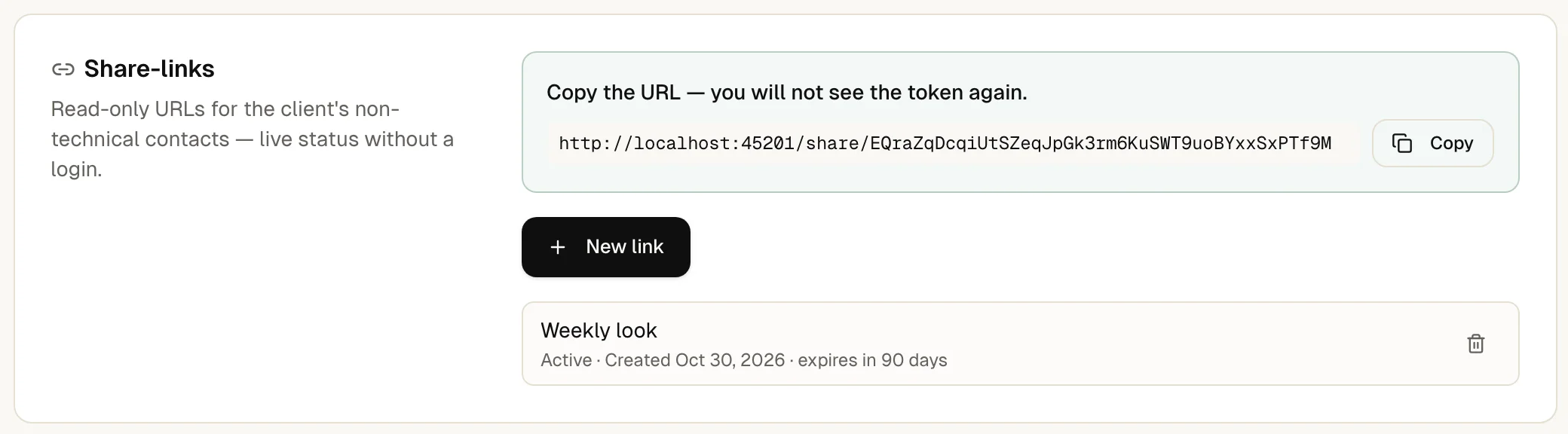
For someone who only needs to look, select New link under Share-links, add a label and choose when it Expires: 30, 90 or 365 days, or never. Without a choice it expires after 90 days. Copy the link at once; up4 shows it only once. A revoked link stops working immediately.
The contact appears under Portal members once they have opened the link. Their portal menu lists Home and Monitoring, plus Incidents and Reports if you allowed them.
If something is off
Sending access fails.
Portal sign-in must be on for the client, and the client must not be archived. Archiving a client locks out its portal members too.
The client says the link has expired or was used.
A used link offers Send fresh link on its page. For an expired link, send a new access.
The contact already has an up4 account.
If that account uses two-factor sign-in, the contact signs in once first. The invitation then adds the portal.
What up4 does not do here
- A portal member is a Viewer in your Company with access to exactly one client, and in no Team. Portal members cannot create or edit anything.
- A portal never shows status pages, alert plans, on-call rotations, billing, members or Company settings.
- If your Company requires two-factor sign-in, a new portal member must set up an authenticator app before they can open the portal.
For your client
Your agency monitors your websites and services with up4 and gives you a view of the results. This part explains what you can open and how to get back in.
Opening the portal
The email from your agency contains a personal link. Opening it signs you in to the portal that shows your company's monitors. You do not create a password or an account. The link works once and stays valid for seven days.
Later, open the same link again. The page then offers Send fresh link, which sends a new sign-in link to the same email address. If the link has expired, your agency can send a new one.
What you can see
- Home and Monitoring: the current state of every monitor your agency watches for you, with its history.
- Incidents: past and current incidents with their timeline. Your agency decides whether this is shown.
- Reports: service level, response time and more. Your agency decides which reports are shown and whether they can be downloaded.
- Profile and Security: your own name, password and sign-in options.
What you cannot do
The portal is read-only. You cannot add, change or delete monitors, and you cannot see other clients of your agency or anything that belongs to the agency itself. If something is missing, ask your agency to switch it on.
/v1/clients/{clientID}/portal-settings | In the app | API field |
|---|---|
| Portal view | preset |
| Incidents | show_incidents |
| Reports | show_reports |
| Service levels | show_report_sla |
| Response time | show_report_response_time |
| Incident analytics | show_report_incidents |
| Downtime evidence | show_report_downtime |
| Report downloads | allow_report_export |
Was this page helpful?